Weekend Drop -












Summary
Having the right settings is the difference between winning your next game or losing it. This guide breaks down the best settings for passing, defense, gameplay helpers, and custom adjustments so you have everything you need to lay the foundation for winning more games. Mastering these settings not only improves your on-field performance but also helps you grind for College Football 27 Coins more efficiently, giving you the edge in both gameplay and team-building.
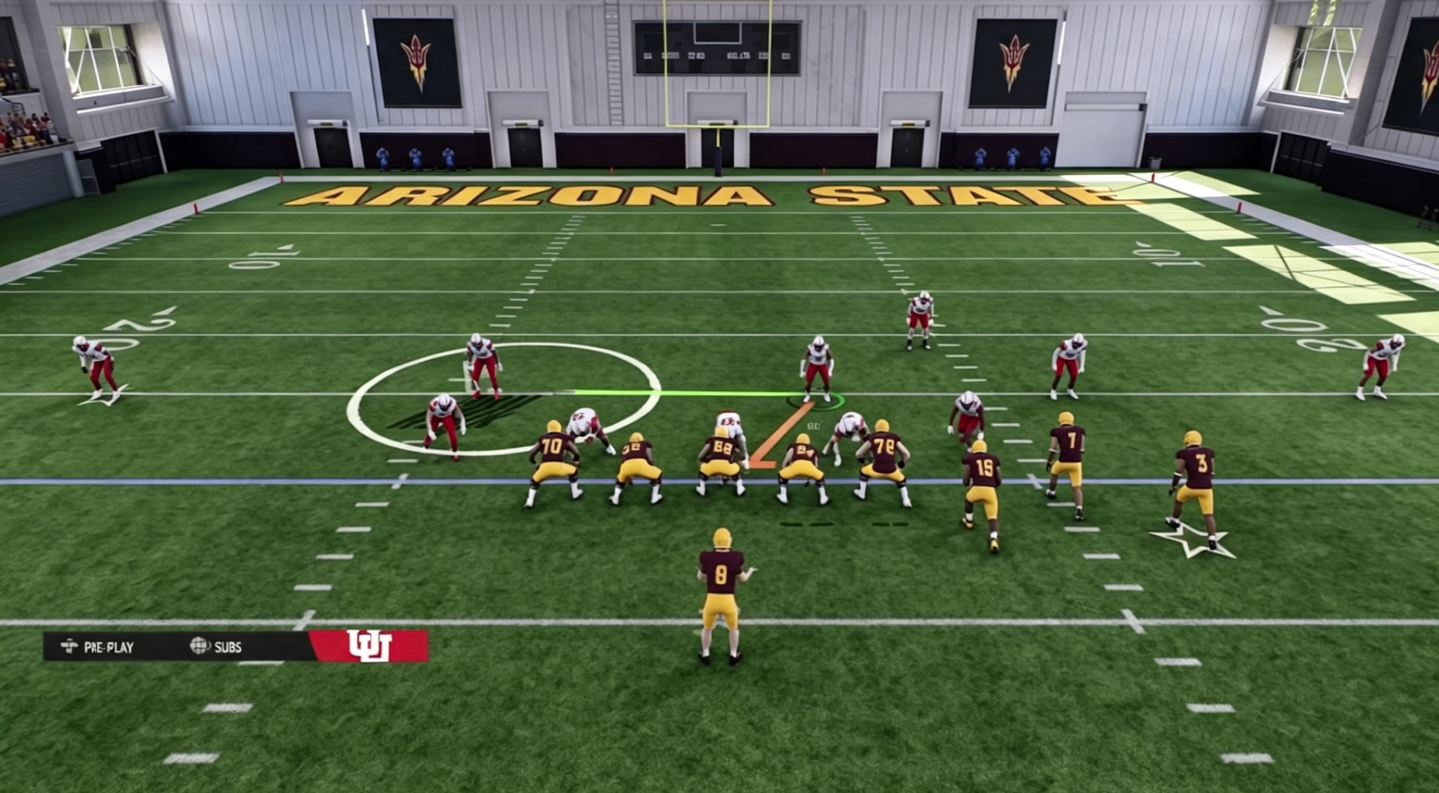
Passing Settings: Hit Every Throw
To get to your passing settings, go to the main menu, scroll down to Settings, click on Game Settings, and scroll down to Passing Mechanics. These are the settings that will affect every single throw your quarterback makes.
Passing Type: Placement & Accuracy – This is the best option for competitive play. Placement & Accuracy gives you a timing mechanic when throwing bullet passes and enables visual aids to help with both accuracy and power. The other options include Classic (the old-school style that doesn't rely on timed presses), Placement (more power control), and Revamped (newer with trajectory options but less control over placement). For ranked and competitive play, Placement & Accuracy is the clear winner .
Pass Lead Increase: Small – This setting works best with Placement & Accuracy. It lets you lead the receiver to a minimal extent and prevents severe overthrows, especially useful if you don't have speedsters who can chase down deep passes .
Reticle Speed: 7-10 – Set this between 7 and 10. If you're new to free-form passing, start lower and adjust as you play more .
Passing Slowdown: Off – A slowdown isn't really needed when passing the ball .
Catching and Timing Settings
College Football 27 introduces a new feature called timing-based catching. You have to have the right settings to make it work.
AI Wide Receiver: On – Turn this on for user teams. This kicks in if you decide not to put in a catch input. You should always try to pick your catch type, but this setting provides a safety net .
Timing-Based Catching Min Throw Distance: 10 Yards – This determines how far the ball must travel for timing-based catching to trigger. Set it at 10 yards. You don't want to be timing your drag routes. Ten yards gives you enough depth downfield to react and time the catch properly .
Timing-Based Catching UI Feedback Type – Set this to Feedback Only or On. This is personal preference. Having it on shows the UI feedback consistently, while Feedback Only keeps the screen cleaner.
For defense, timing-based catching is harder to green than on offense. If you really struggle with it, you can turn it off, but there's an advantage to getting good at it .
Defensive Settings: Lock It Down
Auto Flip Defensive Play Call: On
This setting matches the strength of your defense with the strength of the offense. If the offense has four receivers to the right, your slot corner should be on the right. This helps in both the run game and pass defense. If they run the ball right and your slot corner is on the wrong side, you're in trouble .
Switch Stick Delay: Slight
Switch Stick Delay controls how quickly you can switch players after the snap. Having it on slight gives you a small delay before you can immediately switch stick. This prevents accidentally switching if you were making an adjustment with the right stick. If you set it to none and are shifting your defensive line or slanting them, you'll switch stick right at the snap if they snap it while you're doing that .
The setting does NOT impact how fast you're able to switch stick after you've already made the initial switch. That part is always instant. The delay is purely about the first moment after the snap .
Zone Coverage Strategy
Default or Aggressive for most of the game – Your zone coverage strategy is probably the most important thing you can choose on defense. Conservative is too conservative—it makes deep zones play way too far back. Ultra Aggressive makes your defenders jump routes aggressively, leading to more interceptions but also risking one-play touchdowns over the top.
Ultra Aggressive inside the 20 – Once you're in the short part of the field, flip to Ultra Aggressive. The shorter field makes it harder for receivers to get over the top, and the aggressive play becomes much safer .
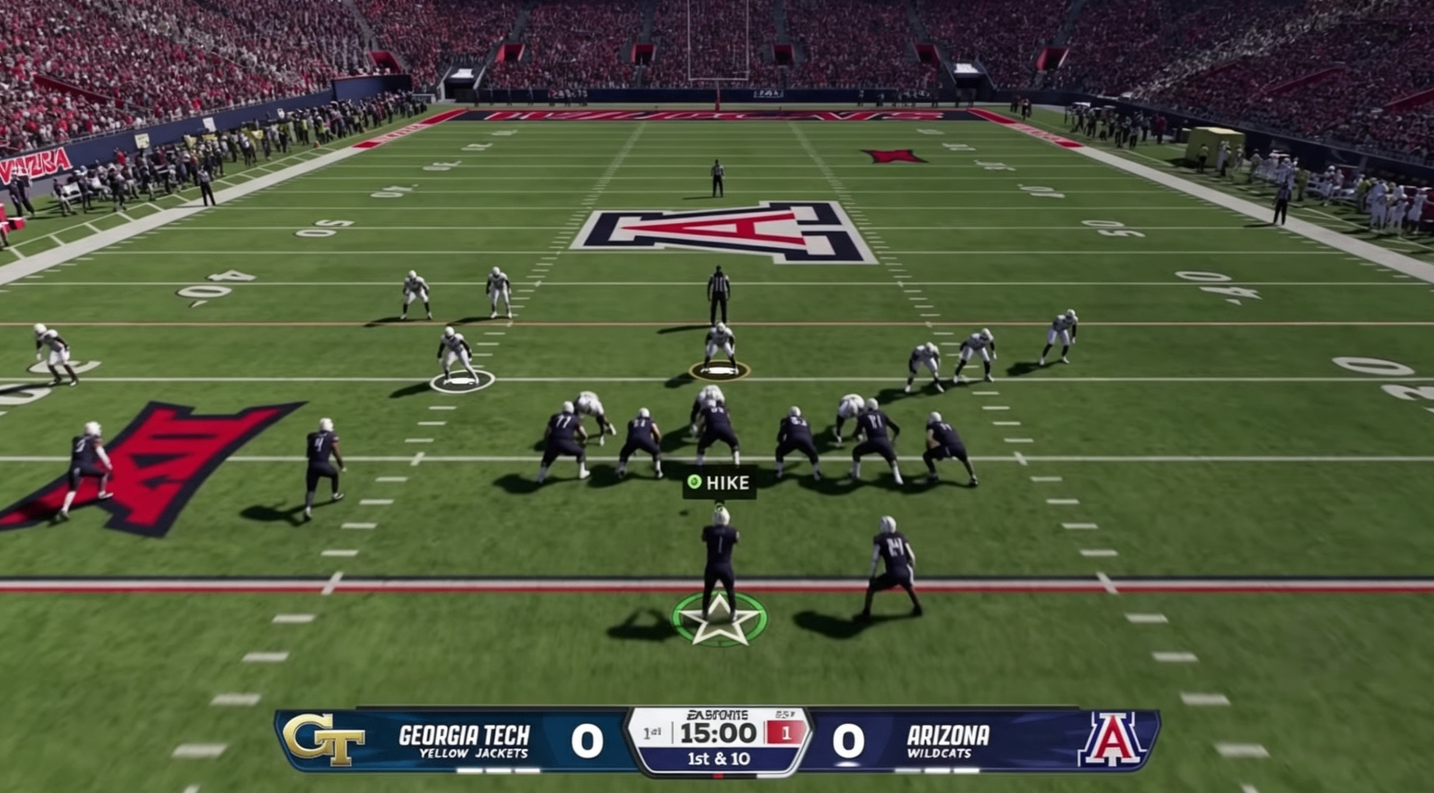
Coaching Adjustments
Auto Pass Protection
Set this to Empty or Base as your default. This ensures your protection scheme is always the same, so you know where to build from. If your protection is always changing, learning how to pick up blitzes becomes really hard. With a consistent base, you can learn what you need to do to block specific blitzes .
Untarget User Defender: Off
This is brand new this year but has a critical flaw. If you turn this on, the offensive line ignores you when you bluff blitz—which is great for the pass game. But it also applies to run plays. If you're mugging a gap and they run the ball, you're untargeted and can wreck the play. Turn this off and manually untarget people by flicking up on the right stick and using the untarget defender feature .
Coverage Shells
Use coverage shells to disguise your defense. At the play call screen on defense, use the right stick to select different shells. Make everything look the same from a cover 2 to cover 4 shell. Regardless of what you call, it always looks the same, and the offense never knows what to expect .
Defensive Motion Response: Disabled
With this disabled, the defense will ignore motion from the offense. This lets you use coverage shells and alignments the way you want without your players shifting. Some players like this on so the defense always aligns correctly, but disabling it gives you more control over your setups .
Gameplay Helpers
Defensive Ball Hawk: On – User-controlled players will auto-move into position to play a catch. This should help you intercept the ball .
Defensive Heat Seeker Assist: On – User-controlled defenders are steered toward the ball carrier when attempting to run or dive into them .
Heat Seeker Window Size: 200 – With Heat Seeker on, you want the biggest window possible to help with steering .
Defensive Switch Assist: On – This helps you when you're switch sticking, or it should be.
Enlarge On-Field Graphics: On – Found in the Accessibility tab, this setting makes all on-field icons, the catch meter, and other UI elements much bigger. It helps a lot of people see the field better .
Controlled Player Art: On – Found in game options from the main menu, this shows you both your run fit and actual pass assignment before the ball is snapped. You can see exactly where you need to go .
Custom Audibles
You can set custom audibles for every formation. In the play call screen, hit Left Trigger to see your four audibles. Replace plays you never call with the ones you actually want. For example, replace Slant with RPO Alert Bubble or Flood.
Important bug to know: If you set your audibles in practice mode, they will not always save. Go into a solo challenge in College Ultimate Team or a head-to-head game against the CPU, set your audibles, quit out, and they'll be saved .
Kicking Settings
Tap and Hold is the best way to kick. This is the setting that will save you from a completely bugged kicking meter. To kick, line it up, hold the button, and let go near the top. Don't use Tap and Tap .
Coin Toss Settings
If you win the coin toss, choose to kick. The logic is simple: if you get the ball at half, you could be down 21 points at half. Score a touchdown to start the second half, you're down 14. That's only two scores. Get a stop and a touchdown, you're down one score. That's a ball game.
Second choice: Against Wind – This ensures that in the fourth quarter, you have the wind with you when you're kicking. An extra yard or so could be the difference between winning and losing .
Network Settings
Get Wired – This is the most underrated tip. Make sure you are wired with an Ethernet cable. Avoid Wi-Fi at all costs. You will avoid lag, button input delay, and your throws will be on time. This goes for really every video game, but in College Football 27, where timing-based catching and green catching are critical, being wired is essential .
Match Coverage Settings
Set all match coverage checks to Zone It or Default. If you don't want to run match coverage, make sure your guys never run match. For man cover checks, set both Combo and Point Combo to Lock. This ensures they never switch and keeps things simple, letting you send the defenses you love knowing exactly what everyone is going to do .
Final Notes
These settings are meant to be a strong starting point. As you become more comfortable and face different opponents, tweak adjustments to fit your playstyle. The key is finding what you're most consistent with—no one-size-fits-all solution works. If you need a roster boost without the grind, you can grab cheap College Football 27 Coins from MMOEXP. Just remember, great settings beat great players every time. Master your controls first.