Weekend Drop -












Summary
The difference between winning and losing in College Football 27 often comes down to one thing: your settings. Whether you're a seasoned veteran or picking up the game for the first time, having the right configurations can transform your performance on the field. After countless hours of competitive play and testing, this guide identified the essential settings that will give you the foundation to dominate your opponents.
1. Passing Mechanics
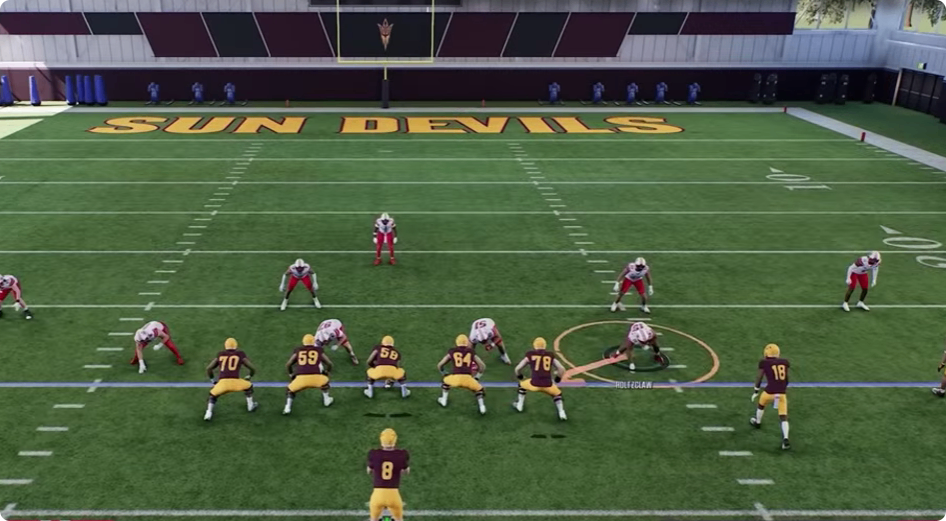
Let's start with the most impactful setting: your passing mechanics. Navigate to game settings and, under pass mechanic, set your passing type to Placement and Accuracy. While Classic passing is outdated and Revamped limits your control, Placement and Accuracy allow you to pinpoint exactly where you want the ball to go, fitting passes into tight windows that other styles simply can't reach. For your pass lead increase, set this to Small to prevent overthrowing receivers. Your reticle speed should be set to seven, striking the perfect balance between responsiveness and control. These settings have been battle-tested in ranked competitive play and are accessible enough for beginners while offering the precision advanced players demand.
2. Timing-Based Catching
College Football 27 introduced timing-based catching, adding a new layer of skill to your passing game. In game settings, scroll to the catching section. Ensure AI Wide Receiver for user teams is turned on as a safety net when you don't manually select a catch type. Set the minimum throw distance for offense to ten yards—this gives you enough time to react and time your catch properly. For defense, keep it at ten yards as well, though some players prefer turning it off since greening catches on defense are more challenging. Your timing-based catching UI feedback can be set to either On or Feedback Only based on personal preference.
3. Defensive Auto Flip
One of the most common defensive mistakes involves misalignment. When on defense, click the right stick in and navigate to the auto flip defensive play call. Always set this to On. This ensures your defense's strength matches the offense's strength, preventing situations where your slot corner is on the wrong side against four receivers. This is crucial for both run defense and pass coverage, as you need numbers on the side where the offense is threatening. With auto flip enabled, your defense will always align correctly against overloaded formations.
4. Switch Stick Delay
Switch stick delay determines how quickly you can switch the stick after the snap. Set this to Slight. The delay prevents you from accidentally switching when making adjustments with the right stick, like shifting your defensive line or slanting your rushers. Having this on Slight gives you enough time to complete your adjustments without sacrificing the ability to switch quickly. Moderate is overkill, and None can cause unintended switches that leave you vulnerable.
5. Custom Audibles
Nothing is more frustrating than liking the look against a defense but not having the audible you need. In the play call screen, press the left trigger to access your audibles and replace plays you never use with ones that suit your strategy. For example, swap Slant for RPO Alert Bubble or Flood. These custom audibles save to your playbook. Just be aware of a bug: setting audibles in practice mode doesn't always save correctly. Instead, set them in a solo challenge or against the CPU in a regular game.
6. Pass Protection
Pass protection is where games are won and lost. Every play has built-in protection, but you can override this with auto-pass protection settings. I recommend setting your default to Empty, as it handles stunts effectively. You can set this as your default in the game settings menu, ensuring consistency across every game. Having a consistent base protection allows you to learn how to pick up specific blitzes rather than adapting to constantly changing protections.
7. Untarget User Defender
This new feature requires careful consideration. Untarget user defender causes the offensive line to ignore a blitzing defender who's bluffing, which can be highly effective for pass plays. However, there's a critical flaw: the setting applies to run plays as well. If you leave it on, the offensive line will ignore the user defender even on running plays, which can be disastrous. Keep this feature off and manually untarget defenders when needed by flicking up on the right stick. This gives you control over when to use the tactic and when not to.
8. Enlarged On-Field Graphics
If you struggle to see receiver icons or the catch meter, navigate to accessibility and turn on enlarge on-field graphics. This makes all on-field icons and meters significantly larger, helping you see the field more clearly and react faster. This setting is particularly helpful for players on smaller screens or those who have difficulty tracking small icons during fast-paced gameplay.
9. Defensive Coverage Shells
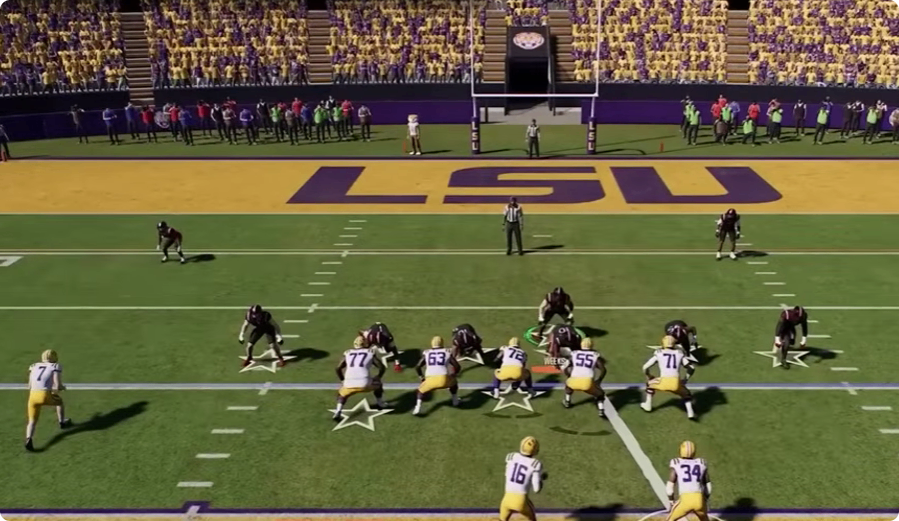
Defensive coverage shells are a powerful tool for disguising your intentions. At the play call screen on defense, use the right stick to select different shells. This makes your cover zero look identical to your cover three, keeping offenses guessing. Never macro these adjustments, as it can cause misalignments. Manually setting your coverage shell before each play creates confusion and forces your opponent to make mistakes.
10. Controlled Player Art
In the game options menu, turn on controlled player art. This displays your run fit and pass assignment before the ball is snapped, showing exactly where you need to go on every play. You'll know whether you're setting the edge against the run or dropping into coverage, allowing you to react faster and make more plays.
11. Kicking Mechanics
Avoid the tap and tap method, which can cause timing issues. Instead, use tap and hold. Simply line up your kick, hold the button, and release near the top of the meter for consistent, accurate kicks. This method gives you more control and prevents the meter from filling unexpectedly.
12. Zone Coverage Strategy
Your zone coverage strategy dramatically impacts how your defenders play. Ultra-aggressive causes defenders to jump routes aggressively, leading to interceptions but also leaving you vulnerable to deep passes. Ultra conservative keeps defenders far back, preventing big plays but allowing underneath completions. I recommend playing most of the game on Default or Aggressive, then switching to Ultra Aggressive inside the red zone where the field is shorter. Never stay on Conservative for extended periods.
13. Coin Toss Strategy
If you win the toss, choose to kick. Receiving the ball at halftime allows you to score and make a game of it even if you're down significantly, setting up a second-half surge that can swing momentum and help you grind out more CUT 27 Coins through comeback wins. Your second choice should be against the wind, ensuring you have the wind advantage in the fourth quarter when the game is on the line.
14. Gameplay Helpers
Set defensive ball hawk to On to help user-controlled players auto-move into position for catches. Set defensive heat seeker assist to On to steer defenders toward ball carriers. Set the heat seeker window size to the largest possible for maximum assistance. Honestly, you probably won't win or lose many games based on these settings alone, but they provide subtle help in specific situations.
15. Match Coverage
In coaching adjustments, turn all matches to Zone. This ensures your players never run match coverage by default, giving you more predictable defensive behavior. If you prefer match coverage, keep these at the default, but I've found that zone coverage with the right strategy settings provides enough flexibility.
16. Defensive Motion Response
With this setting Disabled, your defense stays in position regardless of offensive motion. With it on Default, your defense shifts according to motion. I prefer this setting Disabled because I use coverage shells and alignments that I want my players to maintain. Keeping them in place makes my defensive looks more predictable to me and less predictable to the offense.
17. Network Optimization
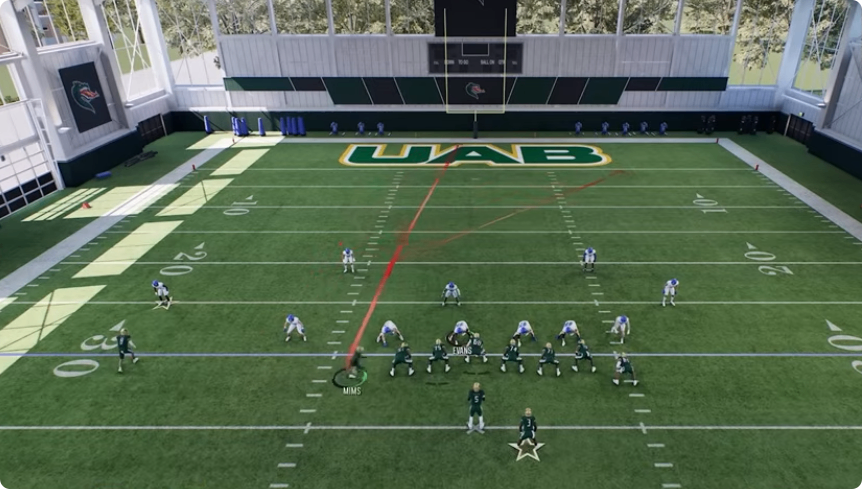
Finally, never underestimate the importance of a wired connection. Playing on Wi-Fi introduces input delay that can ruin your timing-based catches, pass accuracy, and defensive adjustments. Connect an Ethernet cable to your console or PC and plug it directly into your router. A wired connection gives you faster response times and more consistent gameplay, especially in competitive modes where every millisecond counts.
By implementing these seventeen settings, you'll establish the foundation for consistent success in College Football 27. The best players aren't just more skilled—they've optimized every aspect of their setup to maximize their performance. Take the time to configure these settings before your next game, and you'll immediately notice the difference in your gameplay.