Weekend Drop -












summary
This guide covers the best COD Modern Warfare 4 settings for controllers, graphics, interface, audio, and PS5. Recommended adjustments focus on improving aiming accuracy, movement responsiveness, enemy visibility, frame rates, and audio awareness. PC players can optimize graphics for competitive performance, while PS5 users can configure VRR, 120 Hz output, Performance Mode, and wired controller connections for a smoother gameplay experience. Players looking to practice combat scenarios can also explore options to buy CoD Modern Warfare 4 Bot Lobbies and further refine their aiming and movement skills.
1. Best Controller Settings
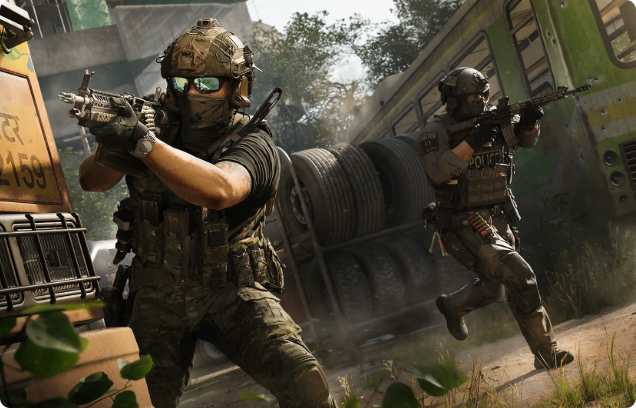
Controller sensitivity is one of the most important factors affecting aiming. A horizontal and vertical sensitivity of 1.65 provides a balanced starting point, although values between 1.35 and 1.8 are worth testing.
Recommended controller settings include:
· Horizontal Stick Sensitivity: 1.65
· Vertical Stick Sensitivity: 1.65
· Controller Vibration: Off
· Left Stick Max Input: 70
· Right Stick Min Input: 0–3
· Right Stick Max Input: 95
A right stick minimum dead zone above five may indicate stick drift or a calibration problem. Recalibrating the controller can help before considering a replacement.
Under advanced aiming settings, set ADS Sensitivity Transition Timing to Instant and Aim Response Curve Type to Dynamic. Keep the Curve Slope Scale at 1 and Target Aim Assist enabled. Motion Sensor Function can remain disabled.
Movement and Combat Settings
Movement settings can significantly affect close-range engagements. Unlike configurations that rely on automatic sprint assistance, turning Sprint Assist off allows players to move forward with their weapon ready. Enable Single Tap Run to activate tactical sprint with a single left-stick press.
Other recommended options include:
· Mantle Assist: Off
· Ground to Mantle: Off
· Slide and Dive Behavior: Hybrid or Slide Only
· Combat Interaction: Tap to Reload for multiplayer-focused players
Avoid Tap to Slide or Tap to Dive if the input delay between sliding and diving interferes with your movement. Hybrid and Slide Only offer more predictable control.
Players using compatible SCUF controllers can also customize stick curves and dead zones through the manufacturer's software. A 1,000 Hz polling rate and a suitable right-stick thumb grip are additional options to consider, depending on hardware support and personal preference.
2. Best Graphics Settings for PC
Competitive graphics settings should prioritize stable frame rates, low input latency, and clear enemy visibility over demanding visual effects.
Start with these display options:
Setting | Recommended Value |
Display Mode | Fullscreen Exclusive |
Display Resolution | Match Monitor |
Screen Refresh Rate | Auto or Highest Supported |
V-Sync | Off |
Custom Frame Limit | Unlimited |
HDR | Off |
NVIDIA Reflex Low Latency | On or On + Boost |
Frame Generation | Off |
Ray Tracing | Off |
Under advanced quality settings, set the VRAM Scale Target to 70%, Texture Resolution to Very Low, Texture Filtering to Low, Detail Quality to Low, and Particle Resolution to Very Low. Disable Bullet Impacts, Persistent Effects, Deferred Physics, and Weather Grid where these options are available.
Set Shadow Quality and Terrain Quality to Very Low, Volumetric Quality to Low, and Screen Space Reflections and Occlusion to Off. Keep texture streaming minimal and use a cache size of 32 when the available options support these values.
For upscaling, NVIDIA DLSS Performance with Transformer and sharpening at 80 is the suggested configuration for compatible hardware. Players should test alternative quality levels if image clarity suffers too much.
Field of View and Visual Effects
A Field of View (FOV) of 100 is a reasonable starting point. However, players who prefer a wider view can experiment with higher values.
Disable Enhanced FOV if preferred, set ADS Field of View to Affected, and reduce first-person camera movement to Minimal (25%). Turn off world and weapon motion blur, weapon depth of field, and film grain to maintain a cleaner image.
3. Best Interface and HUD Settings
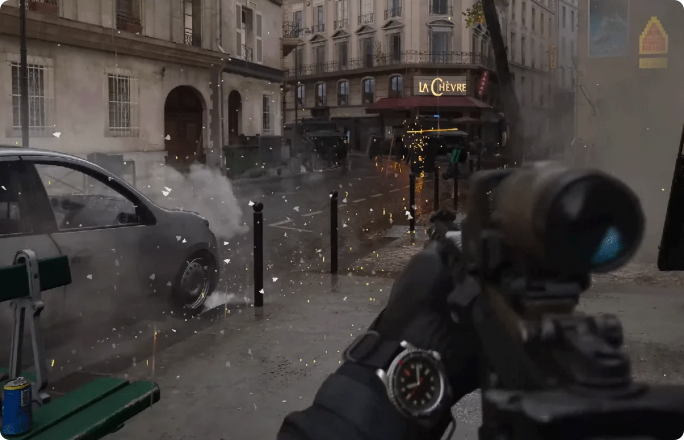
Interface adjustments can make enemy indicators and important combat information easier to notice.
Under Readability, select Color Filter 2, apply it to both the world and interface, and set the intensity to 100. This can make colors more vibrant, although the result depends on the display.
For the gameplay HUD, move the HUD bounds closer to the center of the screen. This places the minimap closer to the player's central field of view, making it easier to check enemy positions without looking as far away from the action.
Additional recommendations include:
· Minimap Shape: Square
· Minimap Rotation: On
· HUD Widget Shake: Off
· Crosshair Lines: Static
· Crosshair Dot: On
· Dismemberment and Gore Effects: Off
The suggested crosshair color is #00FFCC, with maximum saturation and brightness. Radar, compass, stamina bar, and other HUD elements can be adjusted according to personal preference.
4. Best Audio Settings
Audio awareness is essential for detecting footsteps, identifying nearby opponents, and reacting to incoming threats.
Set Master Game Volume to 100 and reduce gameplay and cinematic music to minimize distractions. Choose Headphones as the audio mix when using a headset, and ensure the output device matches your actual audio setup.
Asymmetrical Hearing Compensation can be enabled and configured to suit individual hearing preferences. The recommended setup in this guide uses matching left and right channel values. Reduce Tinnitus Sound can also be enabled, while Headshot and Kill Alerts should remain on if those notifications are useful.
Voice chat settings depend on whether you play with teammates, use an external communication application, or prefer solo matches.
5. Important PlayStation 5 Settings
PS5 players should also review their console settings to make sure the display and controller are configured correctly.
Under Settings > Screen and Video, enable VRR using Automatic when supported by the display. Set 120 Hz Output to Automatic and choose a resolution appropriate for the monitor or television. ALLM depends on display compatibility, while HDR can be disabled if that produces a preferred competitive image.
Next, navigate to Settings > Saved Data and Game/App Settings > Game Presets and select Performance Mode when prioritizing smoother gameplay over resolution.
Under Accessories, use the USB cable communication method for a wired controller connection. Disabling Bluetooth through the appropriate console settings can force the controller to use USB instead.
Finally, under Settings > System > HDMI, disable HDCP if your setup requires it for capture-card recording or streaming. Be aware that disabling HDCP can restrict protected video playback.
Players should verify the console's supported display modes and the game's current requirements before expecting 120 Hz operation. VRR, compatible hardware, and the correct output configuration can all affect availability.
Conclusion
The best COD Modern Warfare 4 settings balance responsiveness, visibility, and personal comfort. A 1.65 controller sensitivity, Dynamic aim response curve, reduced graphics effects, a clear static crosshair, and focused headphone audio provide a useful starting point for competitive play.
PC and PS5 players should verify their hardware capabilities before copying every setting. Test changes individually and prioritize stable performance and consistent aiming over simply using another player's exact configuration. For players looking to practice combat scenarios and refine their skills, exploring cheap CoD Modern Warfare 4 Bot Lobbies may provide another option to complement their gameplay preparation.