Weekend Drop -














Summary
Many losses in College Football 27 come from default settings rather than poor decision-making. Before starting Dynasty, Road to Glory, or Online Head-to-Head, take a few minutes to optimize your gameplay, visual, and coaching settings. The following setup follows the recommended order inside the game's menus and highlights the settings that can immediately improve consistency while helping you make better use of your College Football 27 Coins.
Step 1: Configure Your Passing Settings
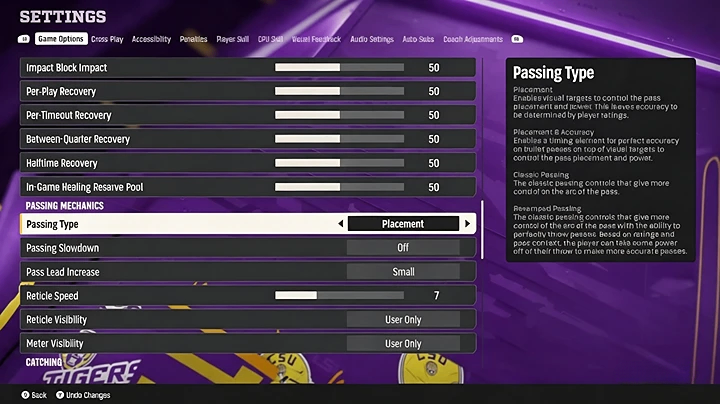
Open Settings → Game Settings → Passing Mechanics.
Choose the passing style that matches your preferred mode:
Placement and Accuracy – Best for competitive online play, offering full ball placement control.
Revamped Passing – Recommended for Dynasty and Road to Glory players who prefer a simulation-style experience.
Classic – Not recommended compared to the newer systems.
After selecting your passing type:
Set Pass Lead Increase to Small.
For Revamped Passing, increase Reticle Speed to around 15.
For Placement and Accuracy, keep Reticle Speed between 5–12, with 7 being a balanced starting point.
Using Placement and Accuracy also enables Free Form Passing with LT/L2, making it easier to place throws away from defenders.
Step 2: Adjust Catching Settings
Navigate to the Catching options.
Keep AI Wide Receiver enabled.
For Timing-Based Catching:
Turn it off if you prefer the traditional catching system.
Set it to 20 Yards if you only want timing catches on deeper throws.
10 Yards is another practical option for intermediate routes.
Avoid enabling it at 0 or 5 Yards, since short routes rarely benefit from manual timing.
Step 3: Optimize Coin Toss Decisions
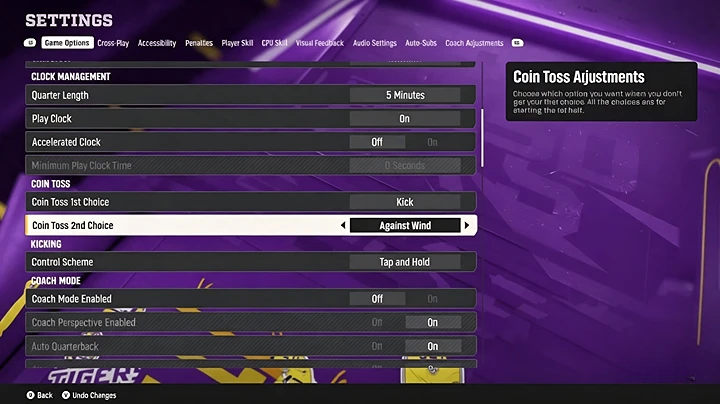
Configure both coin toss options before entering games.
Recommended settings:
First Choice: Kick
Second Choice: Against Wind
Receiving the ball in the second half provides greater control of game tempo, while choosing Against Wind ensures the wind favors your team during fourth-quarter field goals.
Step 4: Turn On Gameplay Helpers
Open Gameplay Helpers and verify these settings.
Enable:
Defensive Ball Hawk
Defensive Heat Seeker Assist
Heat Seeker Assist Window: 200%
Defensive Switch Assist
Controlled Play Art
These settings improve interceptions, open-field tackling, player switching, defensive assignments, and run-fit awareness without changing core gameplay.
Also set:
Switch Stick Delay: Slight
This prevents accidental player switches immediately after the snap while preserving fast manual switching during the play.
Step 5: Improve Visual Clarity
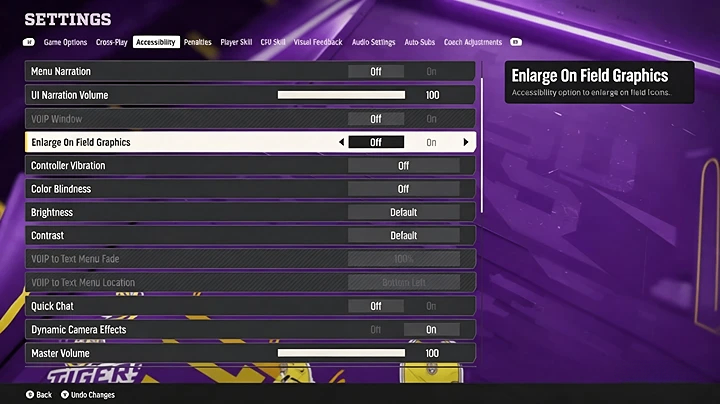
Open the Accessibility menu.
Recommended adjustments include:
Enable Enlarge On-Field Graphics if player icons or catch meters are difficult to read.
Set Force Off Motion Blur to Yes to disable Motion Blur for a clearer view during gameplay.
Next, open Visual Feedback → Cameras.
Turn Camera Toggle off.
Set your preferred Offensive and Defensive camera first, then disable camera switching to avoid accidental camera changes during games.
Step 6: Configure Coaching Adjustments
Many coaching settings can now be saved permanently.
Leave the following on Balanced:
Deep Pass Catching
Intermediate Pass Catching
Blocking
Ball Carrier
Cornerback Matchups
Defensive Gap Integrity
These settings provide the most consistent overall performance.
Adjust these options before playing:
Auto Base Protection: Base (switch to Empty against heavy defensive line stunts)
Wide Receiver Helps Scrambling QB: Aggressive
Auto Flip Defensive Play Call: On
Target User Defender: Off
Step 7: Strengthen Option and RPO Defense
Under Coaching Adjustments, configure option defense as follows:
Option Read Key: Conservative
Option Pitch Key: Aggressive
RPO Read Key: Conservative
RPO Pass Key: Conservative
These settings reduce explosive quarterback runs while improving defensive positioning against option plays and RPO passing concepts.
Step 8: Fine-Tune Defensive Behavior
Leave most remaining settings on Default unless you have a specific strategy.
However, consider these adjustments:
Zone Strategy: Aggressive against opponents relying on short passing attacks.
Plaster Logic: Aggressive
Plaster Trigger: OOP
Plaster Time: Aggressive
These settings help defenders stay attached to receivers when mobile quarterbacks leave the pocket.
Key Takeaways
Before starting a new season or entering online competition, verify these key areas:
Select the appropriate Passing Mechanics.
Configure Timing-Based Catching for your playstyle.
Set Coin Toss preferences correctly.
Enable all major Gameplay Helpers.
Improve visibility through Accessibility settings.
Save your preferred Coaching Adjustments.
Configure Option and RPO defensive behavior before each matchup.
These changes require only a few minutes but can eliminate many common mistakes caused by the default configuration.
Conclusion
The default configuration in College Football 27 does not necessarily suit every player or game mode. Spending time to optimize passing, defensive assistance, coaching adjustments, and visual settings creates a more consistent experience while reducing avoidable errors throughout the season. As you continue building your roster and improving your team, smart preparation remains just as valuable as investing in NCAA Football 27 Coins.