Weekend Drop -










Samenvatting
Deze beginnersgids uit 2026 legt uit hoe je de gratis Roblox Studio downloadt voor Windows en macOS. Met deze tool bouw je 3D-werelden, gebruik je Lua-scripting en kun je je eerste ervaring publiceren. Je hebt een Roblox-account nodig; de veilige optie is om er zelf een aan te maken, al zoeken sommige makers naar opties zoals Kopen Roblox Account. De tutorial leert je de interface, asset-bibliotheek en hoe je een simpele obby bouwt.
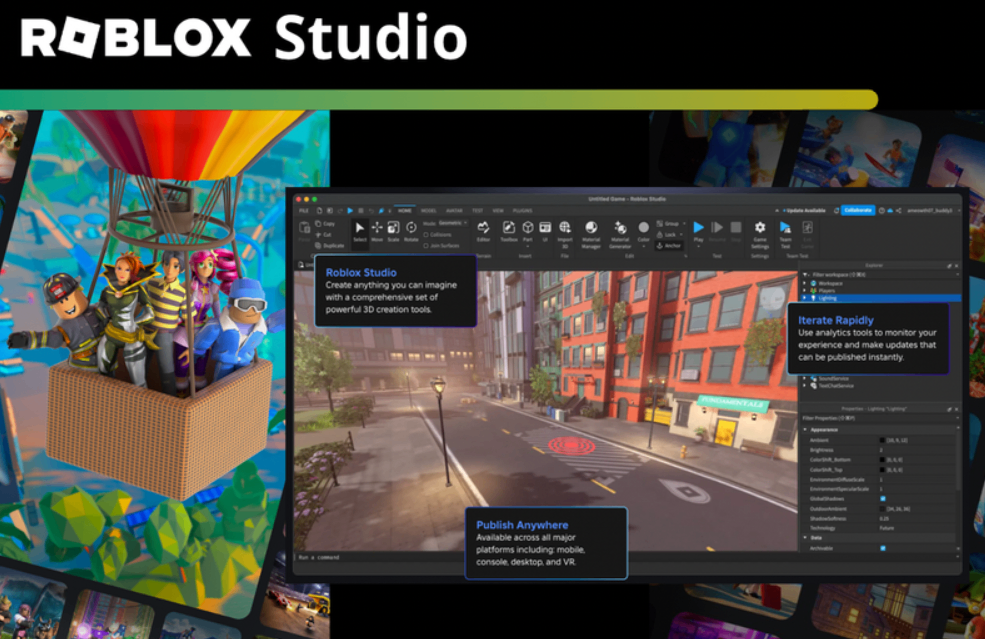
Roblox has become one of the most popular platforms for online gaming and creation. Millions of players explore user-generated experiences every day, and many of those experiences begin in the same place: Roblox Studio. This free desktop application gives creators the tools to design 3D worlds, write game logic, and publish their work for others to play.
Whether you are a complete beginner or already enjoy playing on the platform, understanding Roblox Studio opens the door to turning ideas into playable games. This guide covers what the software is, how to get started, how the interface works, and practical steps for building your first project.
What Is Roblox Studio?
Roblox Studio is the official game development environment created by Roblox Corporation. Every public experience on the platform was built with it. The software supports four main areas of work.
First is design. Creators build environments using parts, terrain tools, and imported models. Second is scripting. Lua is the programming language used to control gameplay, player interactions, events, and data. Third is the Creator Marketplace, a library of free and paid assets such as models, scripts, animations, and audio that can be added to projects. Fourth is publishing. Finished games can be uploaded directly from Studio and updated at any time.
Because Roblox is so widely played, Studio also serves as an accessible introduction to game development and coding for younger users. It combines visual building with real programming concepts in an environment that feels closer to play than traditional coding software.
How Roblox Studio Works and System Requirements
Unlike browser-based tools such as Scratch, Roblox Studio is a standalone desktop application. It runs on Windows and macOS only. Chromebooks and mobile devices are not supported for creation, although players can still enjoy finished games on phones and tablets through the Roblox mobile app.
The software itself is free to download and use. Some advanced developer features and monetization tools may require additional programs or memberships later, but beginners can create and publish complete games without any payment.
How to Download Roblox Studio
Getting the software is straightforward. Visit the Roblox Creator Hub website and select the option to start creating. The site will prompt you to download the installer. Run the installer and follow the on-screen steps. Once installation finishes, launch Studio from your desktop or applications folder.
Always use the official Roblox website for downloads and follow basic internet safety practices. Parents may also want to review parental control settings available on the Roblox platform.
Setting Up Roblox Studio and Your Account
After launching the application for the first time, you will be asked to sign in. A Roblox Account is required to save projects, publish games, and access the full set of tools. If you already have one, simply enter your username and password. If you do not, the sign-up option allows you to create a new account by choosing a username, setting a password, and verifying an email address.
In some cases users look for alternative ways to obtain access, including searching for options such as Kopen Roblox Account. The recommended and safest approach remains creating an official free account directly through Roblox. Once logged in, the start screen appears. From there you can open a new project by selecting a template or starting with a blank baseplate.
Understanding the Roblox Studio Interface
The interface contains several key panels that become familiar with practice.
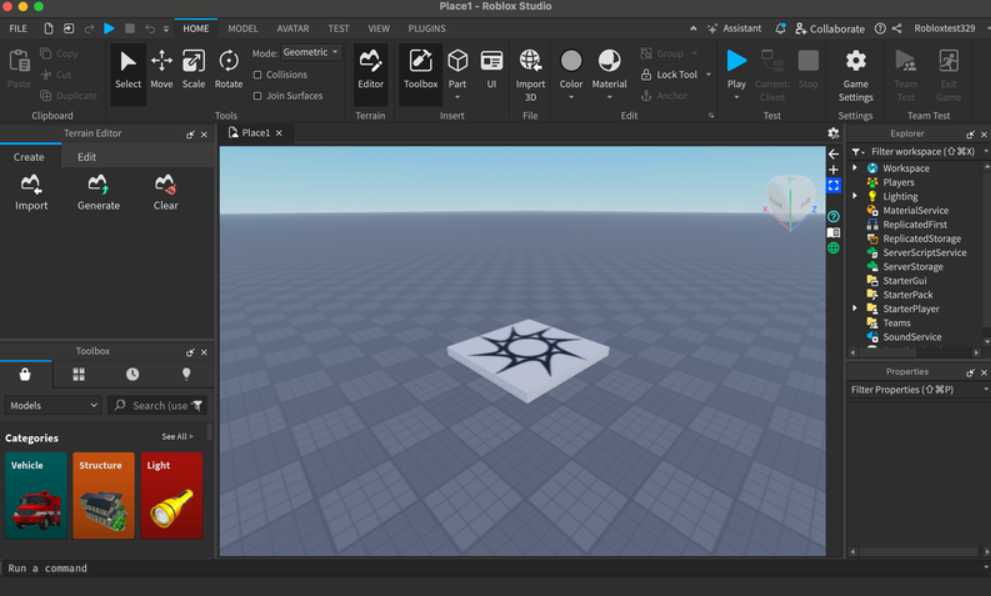
The top menu bar holds common commands for creating new projects, saving work, testing games, and switching between tool sets. The Explorer panel, usually on the right, shows a hierarchical list of every object in the place. Items under the Workspace folder are visible to players. Other folders such as ServerStorage and StarterPlayer hold scripts and objects used behind the scenes.
The Toolbox, often on the left, provides access to the Creator Marketplace. Here you can search for and insert models, plugins, and other assets made by the community. The Properties panel displays editable details of whatever object is currently selected, including name, size, position, color, and material. In the center sits the Viewport, the 3D view of your world. You navigate this space with mouse and keyboard controls to place and inspect objects.
If any panel is missing, open the View menu and toggle it back on.
Learning Resources for Roblox Studio
Official documentation lives on the Roblox Developer Hub. It contains tutorials, API references, and best-practice guides suitable for both new and experienced creators. Many free video series on YouTube walk through specific techniques, from basic part placement to more advanced scripting. Simply searching for topics such as "Roblox Studio beginner tutorial" yields helpful playlists.
Hands-on practice remains one of the most effective ways to learn. Start with small experiments, save frequently, and test your place often by pressing the Play button inside Studio. Patience and curiosity go a long way; most creators improve by building, breaking, and rebuilding.
Building Your First Simple Game
A classic first project is a basic obstacle course, often called an obby. Open Studio and choose the Baseplate template. Make sure the Explorer and Properties windows are visible.
In the Explorer, expand the Workspace folder and delete the Baseplate object. This leaves only the spawn location floating in an empty sky. Next, use the Part button on the Home tab to insert a new block. Position it near the spawn point using the move, scale, and rotate tools. Change its color or material in the Properties panel if desired.
Continue adding platforms, gaps, and simple obstacles. You can later attach scripts that detect when a player touches a part and reset them, or award points. Once the basic layout feels playable, test it inside Studio, then publish the place so others can try it.
Why Creators Choose Roblox Studio
The platform offers several strong reasons to start creating. It is genuinely enjoyable to turn an idea into something others can play. The process teaches useful skills in logic, problem-solving, spatial design, and basic programming. Collaboration is easy; friends can work on the same project or simply play each other's games. Finally, finished experiences can reach a large audience, giving young creators a real sense of accomplishment and self-expression.
Getting Started Today
Roblox Studio lowers the barrier between playing games and making them. Download the free software, sign in with a Roblox Account, explore the interface, and try placing a few parts. From there the learning path is open-ended. Many creators begin with simple obstacle courses and later move on to more complex systems involving scripting, multiplayer logic, and monetization.
The best way to progress is consistent practice combined with official documentation and community tutorials. With time and experimentation, the same tool that powers popular Roblox experiences can become the place where your own ideas take shape.