Weekend Drop -












summary
This guide covers the best Call of Duty: Modern Warfare 4 graphics settings for PC and console, focusing on higher FPS, reduced input latency, and improved enemy visibility. Key recommendations include disabling motion blur and ray tracing, optimizing DLSS and quality settings, adjusting FOV, and customizing HUD colors and interface options for a smoother, clearer multiplayer experience. Players looking to enhance their overall gameplay experience can also explore options to buy CoD Modern Warfare 4 Bot Lobbies while optimizing their settings for more responsive and consistent performance.
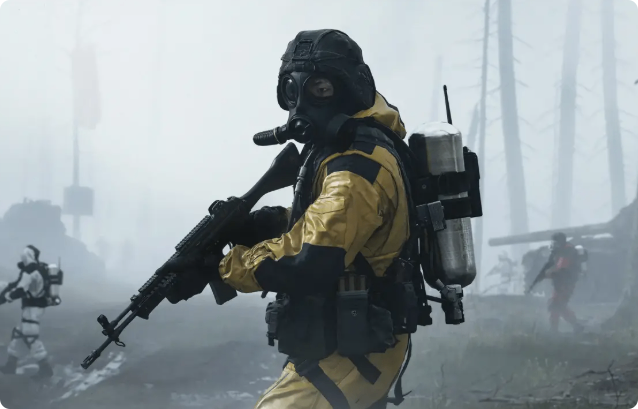
1. Display Settings: Reduce Input Latency
PC players should consider using Fullscreen Exclusive if the option is available. This mode may reduce input latency compared with Fullscreen Borderless on some systems, although the difference depends on hardware and drivers.
Recommended display settings include:
· NVIDIA Reflex Low Latency: Enabled or Enabled + Boost, depending on system performance.
· V-Sync (Gameplay): Off to minimize added input latency.
· Custom Frame Rate Limit: Unlimited or capped according to your monitor and system stability.
· Menu Render Resolution: Native for sharper menus and interface elements.
· Focus Mode: 0, according to the recommended configuration.
· HDR: Off if it produces less consistent visibility on your display.
NVIDIA Reflex should be tested in actual gameplay. Enabled + Boost may help in certain GPU-limited situations, but results vary depending on the CPU, GPU, and power configuration. Players should compare both options in a private match before deciding.
2. Quality Settings: Prioritize FPS and Clarity
For multiplayer gameplay, competitive players generally benefit from reducing expensive visual effects that offer limited practical advantages.
Start with the Custom graphics preset, then consider the following options:
Graphics Setting | Recommended Value |
Frame Generation | Off |
Ray Tracing | Off |
Resolution Scaling | NVIDIA DLSS, if supported |
DLSS Preset | Quality with Transformer, if available |
Image Sharpness | 75% |
VRAM Scale Target | 50% |
Texture Resolution | Normal |
Particle Resolution | Very Low |
Shader Quality | Low |
Automatic Texture Streaming | Optimized |
Allocated Texture Cache Size | 64 |
Local Texture Streaming Quality | Low |
In-Game Video Quality | Standard |
Shadow Quality | Very Low |
Shadow Filtering Quality | Low |
Screen Space Reflections | Low |
Static Reflection Quality | Low |
Terrain Quality | Medium |
Volumetric Quality | Low |
Deferred Physics Quality | Off |
Water Quality | Off |
DLSS Quality with Transformer can provide improved image clarity on supported systems, although it may reduce frame rates compared with lower-quality modes. Players who need additional performance can test Performance or Ultra Performance.
Frame Generation may improve displayed frame rates, but it can introduce additional latency. Turning it off is generally preferable when responsive aiming is the priority. Ray tracing can also impose a substantial performance cost without providing a meaningful competitive advantage.
These settings are starting points rather than universal requirements. Players with more powerful hardware can increase selected options while monitoring frame times and VRAM usage.
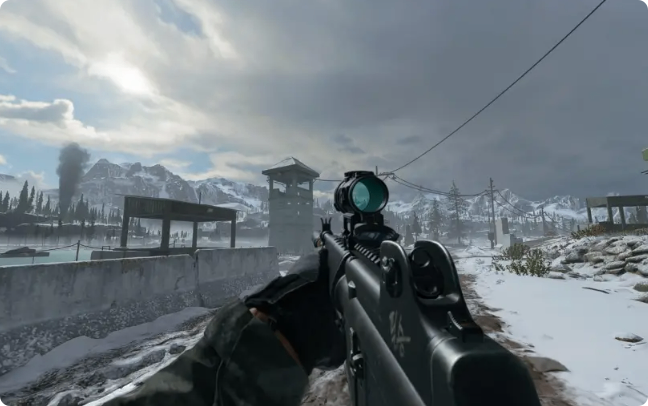
3. Disable Distracting Visual Effects
Motion blur and depth-of-field effects can make it harder to track enemies during fast encounters. For a clearer competitive experience, use the following configuration:
· Weapon Motion Blur: Off
· World Depth of Field: Off
· Weapon Depth of Field: Off
· Film Grain: Off
· World Motion Blur in Cutscenes: Optional
Disabling these effects keeps moving targets and environmental details easier to distinguish. Film grain is particularly unnecessary for players who prioritize visibility over cinematic presentation.
4. Field of View: Improve Situational Awareness
Field of view determines how much of the surrounding environment appears on screen. A wider FOV can help players notice threats approaching from the sides, although distant targets may appear smaller.
View Setting | Recommended Value |
Field of View | 120 |
Enhanced FOV | Off |
ADS Field of View | Affected or Unaffected, based on preference |
Third-Person Field of View | 90 |
Vehicle Field of View | Wide |
First-Person Camera Movement | 25% |
Inverted Flashbang | Personal preference |
An FOV of 120 is a useful starting point for PC players who prefer maximum peripheral visibility. Players who struggle to identify distant enemies can experiment with 105–115 instead.
Enhanced FOV should be tested carefully because its performance impact can vary. For ADS Field of View, Affected preserves the wider perspective while aiming, whereas Unaffected provides a more traditional zoom effect.
5. Interface and Readability Settings
Interface adjustments can improve awareness without significantly affecting performance.
Under the Global interface settings, enable the FPS counter and ping display. These indicators help identify frame-rate instability and potential network latency. Packet-loss information can also be useful when troubleshooting connection problems.
For better visibility, customize the HUD color palette using more vibrant colors. The recommended configuration uses Color Filter 2, with the filter target set to Both for world and interface colors. Adjust the intensity to suit your display and visual preferences.
The square gameplay HUD is another option worth testing because it can provide a larger visible minimap area than a round layout.
Keep the crosshair easy to identify by using a white color, enabling the center dot, and setting opacity to 100%. Players who have difficulty centering their aim can experiment with a larger dot.
Final Recommendations
The best Call of Duty: Modern Warfare 4 graphics settings balance frame rate, image clarity, and visibility. Disabling motion blur, ray tracing, and unnecessary effects can help competitive players maintain a cleaner view of the battlefield, while an appropriate FOV and customized HUD improve situational awareness. Players looking to explore additional gameplay options can also consider cheap CoD Modern Warfare 4 Bot Lobbies as part of their overall gaming experience.
Test these settings individually rather than copying every option blindly. The ideal configuration depends on your hardware, monitor, and personal preferences, so prioritize stable performance and clear enemy visibility over maximum graphical detail.