






Summary
College Football 27 has plenty of features that are easy to overlook. Some can directly improve your playcalling, while others make managing your offense, defense, cameras, and playbook much easier. To take full advantage of these features, buy CUT 27 Coins and unlock premium tools.
Here are several useful settings, controls, and hidden tricks worth adding to your game.
Clear Cold Players With Coach Chat
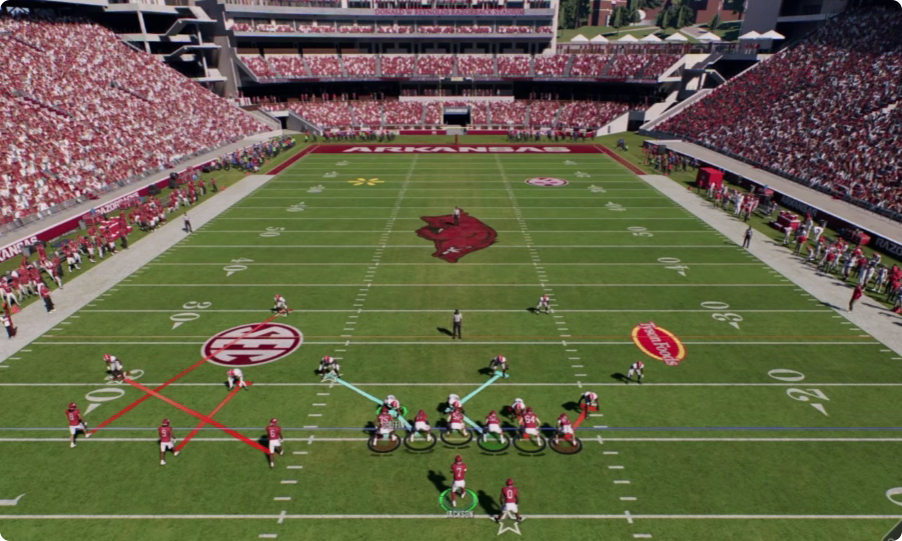
The hot and cold system can have a major impact during games. A player with the cold icon may be less reliable, potentially struggling with hot routes, drops, or accuracy.
Fortunately, CFB 27 gives you a way to reset a cold player.
How to Use Coach Chat
Before the snap:
1. Press Right on the D-pad to open Coach Chat.
2. Highlight the player with the cold icon.
3. Press Y on Xbox or Triangle on PlayStation.
4. The player's cold status will be cleared.
5. Run the next play to complete the reset.
You can use this feature around three times per game, so save it for important situations. If your quarterback or another key player becomes cold late in a close game, Coach Chat can help get them back to a neutral state.
Use Chip and Release Routes
The Chip and Release option is one of the most useful offensive tools for dealing with blitzes and zone coverage.
Instead of immediately sending a running back into his route, you can make him briefly help the offensive line first.
Why Chip and Release Works
Press Y/Triangle to select your running back and open his hot-route options. Select Chip and Release.
The route changes color, indicating that the running back will briefly delay his release.
If the defense sends a blitz, the running back stays in to help block. If there is no blitz, he releases after the short delay and continues into his assigned route.
This creates a useful two-way option:
Against a blitz: The running back helps pick up the pressure.
Against zone coverage: The delayed release can help him become open underneath.
With deeper routes: The delayed running back route can allow other receivers to occupy defenders before he releases.
You can apply the technique to different routes, including a Texas route, so experiment with it based on the defensive look.
Customize Cameras With Modular Camera Settings
CFB 27 also lets you create different camera views for different situations through Modular Camera Settings.
Go to the settings menu and navigate to Visual Feedback, then find Cameras and open the modular camera settings.
Set Different Cameras for Different Plays
You can customize the camera for situations such as:
Pre-play
Carry Ball
Drop Back
Post-play
For example, you can use a wide camera before the snap to see the entire formation. You might prefer the standard camera while running the ball, while a wider view can help you see more of the field when passing.
You can even use a broadcast camera for post-play sequences to create a more traditional television presentation.
After configuring the modular settings, make sure your offensive and defensive camera settings are actually set to Modular. Otherwise, your custom configurations will not take effect.
Guess Pass to Improve Pass Rush
Guess Pass is another feature that has been around for years but can be extremely useful in obvious passing situations.
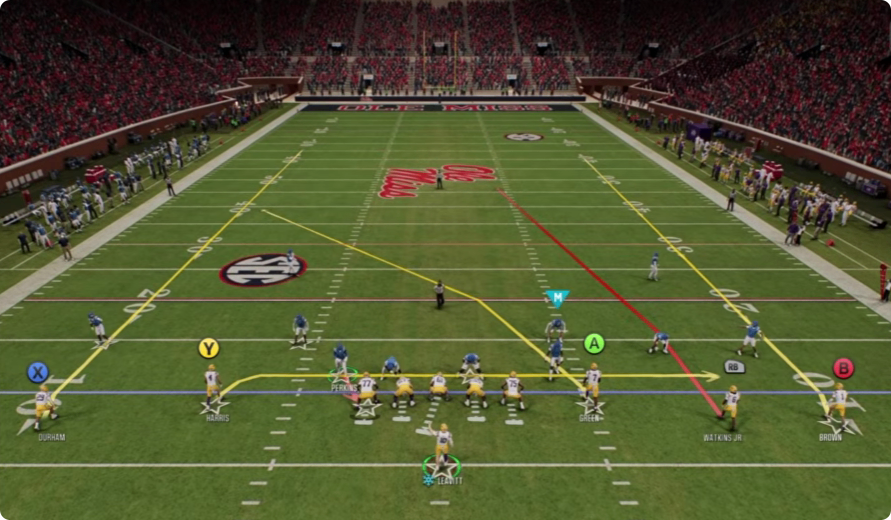
When you expect the opponent to throw, press RB/R1 to open the guess-play options, then flick the right stick up to select Guess Pass.
When to Use Guess Pass
One obvious benefit is that your defense is less likely to be fooled by play-action when you correctly guess pass.
More importantly, the defensive line can attack the quarterback more aggressively. Linemen may shed blocks faster and generate pressure sooner.
It does not guarantee an immediate sack, but consistently using Guess Pass in obvious passing situations can help your pass rush get off blocks more quickly.
Avoid using it when you genuinely expect a run, because correctly identifying the situation is important.
Use Playmaker to Change Routes on the Fly
The Playmaker feature can turn short routes into much bigger gains, particularly against aggressive underneath coverage.
How to Use Playmaker
Hold LT/L2, then point the right stick in the direction you want the nearest eligible player to run.
The game uses the player closest to you, making this especially useful with drag routes and running backs.
For example, if a receiver is running underneath on a drag and the defense is aggressively covering short routes, hold LT/L2 and push the right stick upward. The receiver can immediately turn upfield instead of continuing across the formation.
This is particularly effective against defenses that aggressively clamp down on underneath routes.
Check Blocking Assignments Before Running
You can also reveal blocking assignments before a play.
Hold Left on the D-pad, then press Left on the right stick. Lines will appear showing which offensive players are assigned to defensive players.
Use Blocking Lines to Find Running Lanes
This information can help you identify:
Which defenders are being blocked
Which blockers are moving to the second level
Which defenders are left unblocked
Where a potential running lane could develop
If every defender near the line is accounted for, you can attack the designed gap with more confidence.
However, if an outside defender remains unblocked, you know that defender could crash into the play. This lets you adjust your running path and avoid blindly following the original blocking design.
Favorite Your Most Important Plays
If you have a few plays that you rely on repeatedly, add them to your Favorites.
Go into the playbook, highlight the play you want, and double-tap its corresponding button. A star will appear next to the play.
Build a Situational Favorites List
You can favorite as many useful plays as you need, but it is better to focus on plays you might urgently need during a game.
Good examples include:
Your favorite third-down play
A reliable red-zone play
QB sneak
Two-minute offense plays
Emergency fourth-down plays
Field goal
Special teams are particularly important. Favorite your field goal formation so you can access it immediately when the clock is running down.
Instead of scrolling through the entire playbook with only a few seconds remaining, simply move to the Favorites section and select the field goal.

Combine These Features for Better Results
The biggest benefit comes from using these mechanics together.
Clear a cold quarterback with Coach Chat before an important drive. Use Chip and Release to protect against blitzes while creating underneath opportunities. Use Playmaker to turn short routes into explosive plays against aggressive coverage.
On defense, use blocking assignments to understand offensive formations and Guess Pass when the situation clearly calls for pressure.
Finally, customize your cameras and build a situational Favorites list so you spend less time navigating menus and more time making plays.
These features may not completely change how you play CFB 27 individually, but learning when to use each one can make your offense, defense, and overall game management much more efficient. To build a roster that matches your scheme, CUT 27 Coins can unlock premium recruiting.