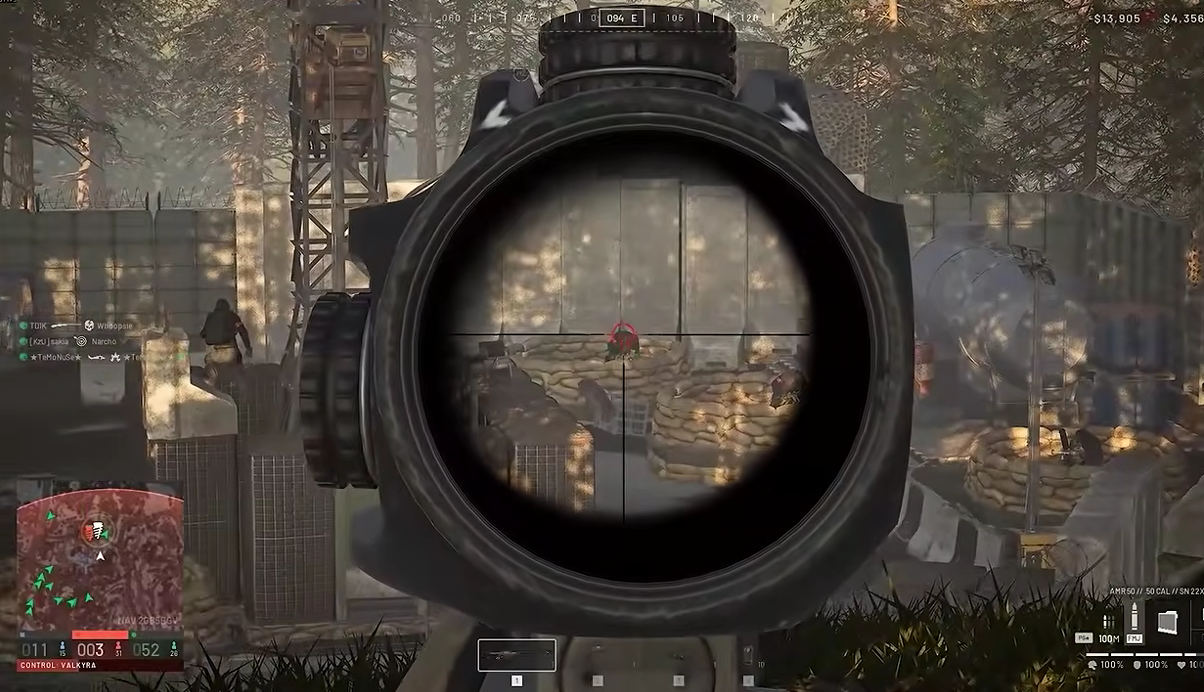










The right Modern Warfare 4 Beta settings can make a huge difference before you even touch your loadout. From Dynamic aim response and low stick deadzones to SSD optimization, high-FPS graphics, and advanced movement techniques, these tweaks are designed to make your controls feel faster and more consistent. Whether you're chasing the competitive meta or simply want smoother matches, this setup gives you a strong starting point. buy COD MW4 Bot Lobbies on MMOexp to level up faster and stay ahead.
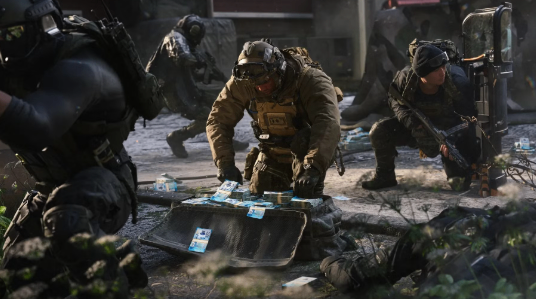
Dial In Your Controller Before You Blame Your Aim
Your controller settings directly affect how quickly you can turn, track targets, and snap onto enemies. Start with 1.50–1.70 horizontal and vertical sensitivity, then fine-tune it around your comfort zone.
For the aim response curve, Dynamic is a strong choice because it provides a smoother feeling when making precise adjustments. Set ADS sensitivity transition timing to Instant so your sensitivity changes immediately when aiming down sights.
Controller vibration is worth disabling. It removes another potential source of distraction during gunfights. For stick deadzones, try 3–5, using the lowest value you can without triggering stick drift.
Value for You:
Best for controller players and aim-focused competitors. You'll gain more responsive sticks and a cleaner aiming experience without unnecessary input interference.
Your Button Layout Can Make or Break Movement
Don't blindly stick with the default layout. Experiment with swapping △ and ×, or switching R1/R2 with L1/L2, until your most important actions feel natural.
If your mouse has side buttons, consider binding lethal and tactical equipment there. This lets you throw equipment while moving without taking your fingers away from important movement controls.
The goal isn't finding one “pro” layout. It's creating a setup where your most-used actions require minimal finger movement.
Value for You:
Best for movement-heavy players and aggressive rushers. You'll reduce awkward inputs and make equipment usage smoother during fast engagements.
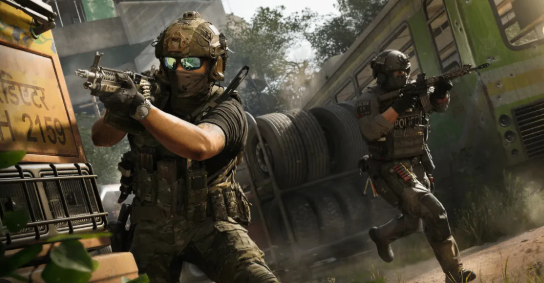
Chase FPS Before You Chase Pretty Graphics
Modern Warfare 4 removes traditional bullet spread and introduces a new ballistic authority system, making consistent performance even more important for competitive aiming.
Start with the basics. Install the game on an SSD, update your NVIDIA or AMD graphics drivers, enable Windows Game Mode and HAGS, and close unnecessary background applications.
Inside the game, pay special attention to render resolution, texture streaming, shadows, and particle quality. These settings can have a major impact on performance, so prioritize stable FPS over visual eye candy when competing.
Value for You:
Best for PC players and competitive FPS grinders. You'll free up system resources, improve frame consistency, and reduce performance-related distractions.
Don't Forget These PC Requirements
Your setup also needs to meet several important requirements. TPM 2.0 and Secure Boot should be enabled in your BIOS to access online play.
Official information indicates that GPUs around the GTX 970/1060 level can run the game, although an SSD remains essential. Some testing has even shown entry-level hardware approaching 60 FPS at 4K with high settings and upscaling enabled, depending on the configuration.
Remember that beta performance can change. Treat these figures as reference points rather than guaranteed results.
Value for You:
Best for budget PC players and beta testers. You'll understand which hardware and system settings deserve attention before troubleshooting performance.COD MW4 Bot Lobbies on MMOexp to level up faster and stay ahead.
Master the Movement Tech That Actually Matters
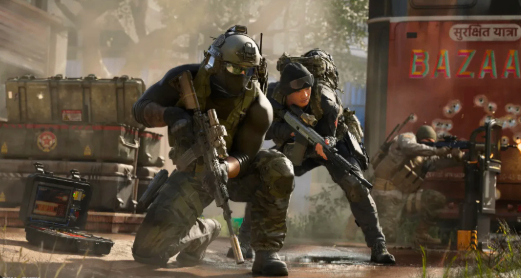
Modern Warfare 4's movement system rewards players who understand more than basic sprinting. Mantle Cancelling lets you use a mantle action to quickly peek for information or create an unexpected firing angle without fully committing to the climb.
The prone slide is another useful tool. While sprinting, double-tap crouch to perform a long transition from standing into a prone slide. It can break an opponent's pre-aim and create a sudden change in your hitbox.
You can also chain slides and mantles together to maintain momentum when moving around cover. Just remember to manage your stamina—tactical sprint speed decreases as fatigue builds.
Value for You:
Best for movement specialists and aggressive PvP players. You'll gain more evasive options and better control over engagements around cover.
Use the Map's Vertical Routes
Don't ignore climbable pipes and other vertical routes. Certain areas allow you to hang from pipes and fire, creating angles enemies may not expect.
These routes can be especially effective when opponents are focused on conventional lanes. Instead of challenging enemies head-on, use vertical mobility to create an unexpected attack angle.
The key is unpredictability. If everyone expects you to take the obvious route, the unusual route can become your biggest advantage.
Value for You:
Best for map-aware players and flankers. You'll discover alternative attack routes and create more opportunities for surprise kills.
The Small Settings That Prevent Big Mistakes
For aim assist, Default is a solid starting point for most players. For sprint assistance, Tactical Sprint Assist can reduce the number of manual inputs you need.
At the same time, consider disabling Mantle Assist so the game doesn't automatically trigger a mantle when you don't want one. Set weapon mounting activation to Toggle to reduce accidental mounting during movement.
Finally, Interact Priority is recommended for interaction/reload behavior. This can help prevent accidental reloads when you're trying to interact with an object, which becomes particularly useful in modes such as Warzone.