




Summary
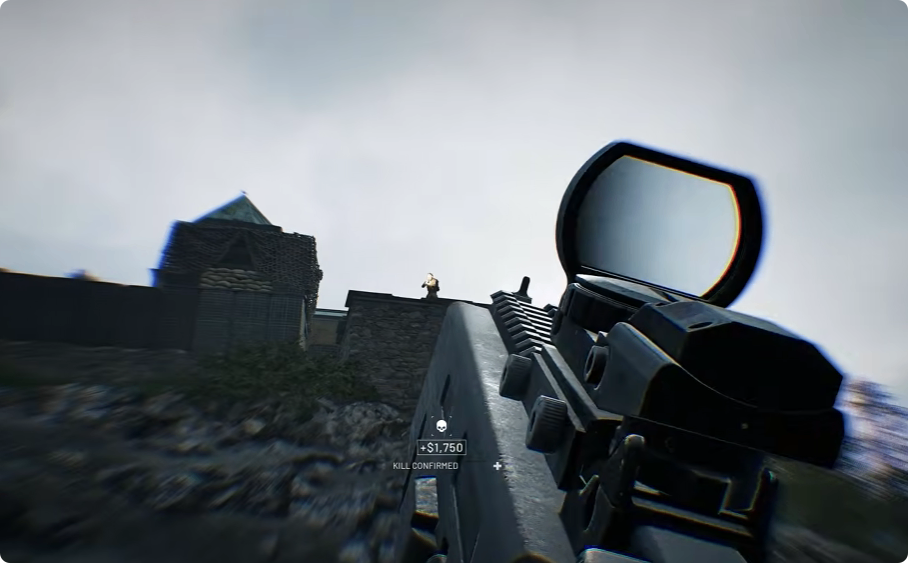
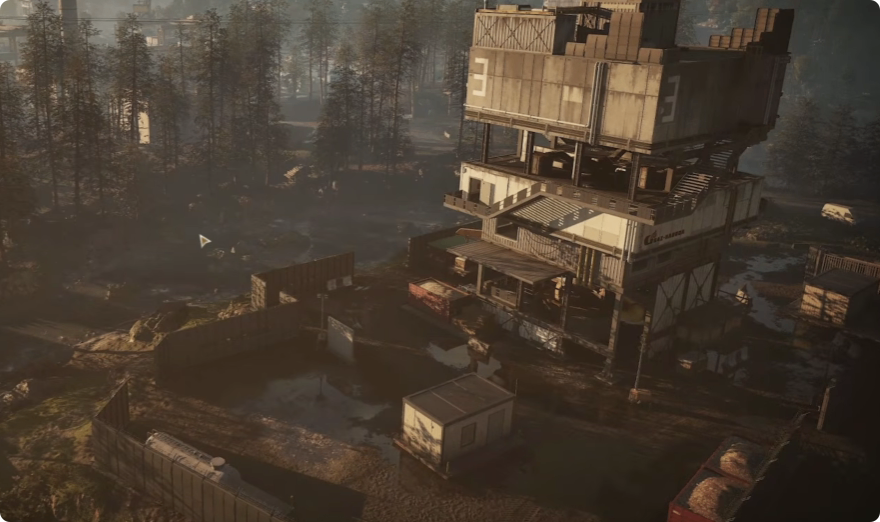
Seeing enemies quickly is one of the biggest challenges in WARDOGS. Players can easily blend into bushes, windows, rocks, dark rooms, or distant terrain, while excessive fog, reflections, particles, and screen effects can make spotting movement even harder.
If your priority is competitive visibility rather than visual quality, the following settings focus on making enemy silhouettes easier to identify while reducing unnecessary visual clutter. To unlock the best optics and attachments for your loadout, buy WARDOGS Dollar; you need to gain a competitive edge.
Best WARDOGS Graphics Settings for Visibility
The goal is not to maximize graphics quality or frame rate. Instead, these settings simplify the environment and preserve enough character detail to make players stand out.
For the main graphics options, set Mesh Detail to High and View Distance to High. Use Low for Shading, Post Processing, Character, and Texture Streaming. Set Reflections, Particle Spawn Rate, Effects, World, Foliage, and Texture Filtering to Potato.
This combination prioritizes visibility over graphical fidelity and is designed to reduce visual noise during combat.
Mesh Detail: High
Set Mesh Detail to High because distant cover and environmental objects retain clearer geometric edges. On lower settings, objects such as rocks, sandbags, concrete barriers, and window frames can lose their shape and visually merge with the surrounding terrain.
Higher mesh detail keeps those edges more stable. As an enemy moves around cover, their silhouette is therefore easier to separate from the environment.
It can also reduce misleading environmental movement. Low mesh settings may cause distant objects to change shape or pop in as you move, creating visual noise that can be mistaken for player movement.
View Distance: High
View Distance should be High, especially if you frequently snipe or fight at long range.
With a low view distance, distant objects and players may not appear until you get closer. On WARDOGS' large maps, that can give an opponent more time to spot or attack you. High View Distance also reduces noticeable pop-in when scouting from vehicles or looking across large areas.
Reduce Lighting and Reflection Clutter
Shading: Low
Set Shading to Low rather than Potato.
According to the source description, very low shading can cause exposure and lighting problems, making skies, concrete, roads, and open areas excessively bright. Low retains enough basic lighting processing to avoid this while keeping the environment relatively flat and predictable.
This is particularly useful when trying to identify darker moving silhouettes. Keeping shadows visible can also provide additional information about players approaching from behind cover or around corners.
Reflections: Potato
Set Reflections to Potato to eliminate unnecessary glare from surfaces such as puddles, metal, glass, and wet objects.
Higher reflection settings can introduce changing highlights and reflections as your camera moves. These flashes may look like movement and create distractions while you're scanning an area.
Lower reflections also reduce simulated reflections on optic lenses, keeping your sight picture clearer.
Minimize Particles and Combat Effects
Particle Spawn Rate: Potato
Particle Spawn Rate should be Potato.
Explosions, artillery, vehicle destruction, dust, debris, muzzle flashes, and other particles can temporarily cover your screen. The source particularly highlights dust clouds from explosions and supply-drop interactions as visibility problems.
Lower particle density makes these effects less intrusive, allowing you to reacquire targets more quickly after explosions.
Effects: Potato
Set Effects to Potato as well.
This reduces screen-altering effects such as damage overlays, blood effects, flashes, and other combat filters. The screen can otherwise become darker, blurrier, or more cluttered when you're taking damage or fighting around explosions.
You will still experience unavoidable elements such as screen shake, but reducing additional visual effects keeps the target area easier to read.
Keep Motion and Backgrounds Clear
Post Processing: Low
Use Low Post Processing, not High or Potato.
High Post Processing can introduce or strengthen effects associated with temporal processing, motion blur, depth of field, and other visual filters. When rapidly turning your camera to scan the battlefield, these effects can smear moving objects into the background.
However, setting Post Processing to Potato can reportedly create an exposure problem that makes bright environments excessively washed out.
Low therefore provides a middle ground: fewer distracting visual effects while retaining enough processing to prevent the extreme brightness associated with the lowest setting.
World: Potato
Set World to Potato to reduce atmospheric clutter.
Higher settings can add fog, horizon haze, heat shimmer, and other environmental effects. These effects may obscure distant players, particularly snipers or enemies moving through forests and open areas.
Potato simplifies the atmosphere so distant targets can stand out more clearly against the background.
Foliage: Potato
For competitive visibility, Foliage should also be Potato.
Detailed grass, rocks, twigs, leaves, and other small environmental elements create additional visual information for your eyes to process. A stationary player can also blend into this detailed scenery.
Lower foliage detail flattens much of this background noise. A moving enemy can consequently become much more noticeable, including in peripheral vision.
Optimize Character Rendering
Character: Low
Character Detail is best kept at Low rather than Potato.
While Potato removes additional visual detail, it can make player models lose their recognizable shapes and turn into low-polygon forms. This is particularly noticeable when observing characters from a distance or during vehicle travel.
Low keeps the basic geometric structure of character models intact while reducing some of the detailed camouflage and equipment textures that can help players blend into the environment.
Balance Texture Streaming
Texture Streaming: Low
Set Texture Streaming to Low.
Potato can cause player models and environmental assets to temporarily appear as low-detail or "clay-like" models when you quickly turn, zoom, or travel at high speed. High settings, meanwhile, can demand more VRAM and potentially contribute to stuttering during intense scenes.
Low provides a balance between visual loading and performance. The source recommends it because it can maintain sharp enemy models without unnecessarily loading large amounts of background texture data.
Texture Filtering: Potato
If the option is available, set Texture Filtering to Potato.
The source argues that lower filtering produces harsher, less-smoothed textures. At long distances, moving player pixels can therefore contrast more strongly against static backgrounds.
This can make distant movement easier for your eyes to detect, particularly when an enemy crosses a hill, building, or other relatively flat background.
Windows and NVIDIA Settings
Graphics settings inside WARDOGS are only part of the setup. PC players can also adjust display settings outside the game.
Windows Color Calibration
On Windows, search for Color Calibration and open the display color calibration tool.
Follow the built-in steps to adjust gamma, brightness, contrast, and color balance for your monitor. The purpose is to ensure that dark areas are visible without making bright areas excessively difficult to read.
NVIDIA Desktop Color Settings
For NVIDIA users, the source recommends setting Brightness to 60%, Contrast to 50%, Gamma to 1.25, and Digital Vibrance to 70%.
These settings make the image brighter and increase color separation, although they can also make the overall image look more washed out. The source specifically notes that their impact on WARDOGS itself is limited compared with other games.
Display and NVIDIA Reflex
Match Your Frame Rate to Your Monitor
Check your monitor's maximum refresh rate under Windows' advanced display settings and run the display at its highest supported refresh rate.
The source also recommends disabling V-Sync and limiting frame rate to the monitor's refresh rate in a typical setup. Hardware and monitor configurations vary, so players with very high-refresh-rate systems may need to adjust this approach.
NVIDIA Reflex: Enabled
If you have a supported NVIDIA RTX GPU, enable NVIDIA Reflex.
The recommended setting is Enabled, rather than Enabled + Boost. The source argues that Boost can keep the GPU running at full power and potentially introduce unnecessary stuttering.
For anti-aliasing, the source uses DLSS Quality, although this depends on your GPU and should be tested on your own system.
Audio Settings to Check
Visual settings aren't the only factor when locating enemies.
If footsteps or helicopters are difficult to locate directionally, check 3D Spatial Audio. The source recommends disabling it if your particular audio hardware produces quieter or less precise positional sounds.
This is especially worth testing if you use older audio equipment or an external amplifier. The important point is to compare the setting yourself: if disabling spatial audio makes footsteps and directional sounds easier to identify, keep it disabled.
Final WARDOGS Visibility Setup
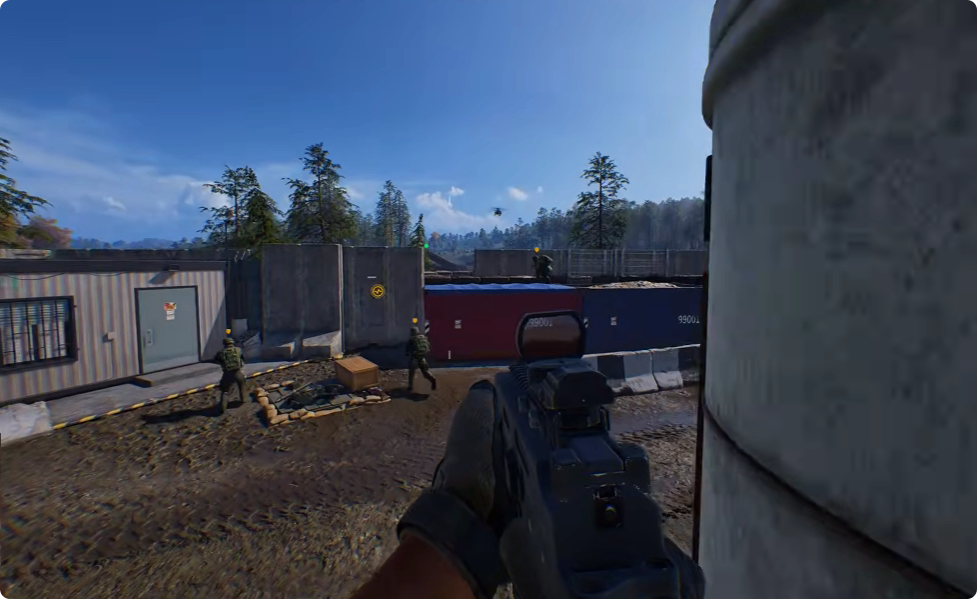
For a quick competitive setup, start with Mesh Detail and View Distance on High. Use Low for Shading, Post Processing, Character, and Texture Streaming. Set Reflections, Particle Spawn Rate, Effects, World, Foliage, and Texture Filtering to Potato. To unlock the best optics and attachments for your loadout, WARDOGS Dollar can help you secure the gear you need to spot enemies faster.
The overall principle is simple: keep geometry and enemy models readable while flattening unnecessary environmental detail, lighting effects, particles, fog, reflections, and screen filters.