







AION 2 can look blurry even at maximum settings. Color fringing around screen edges, soft distant details, and skills obscuring targets are different problems that need different adjustments.
Post-processing changes camera effects, DLSS/FSR handles image reconstruction, and player-particle settings control whose effects appear. Lowering everything can clear clutter while losing detail and combat information.
Screenshot your current settings first. Keep output resolution and viewpoint fixed, address clarity, then adjust performance for solo exploration or crowded combat.
What Post-Processing Changes
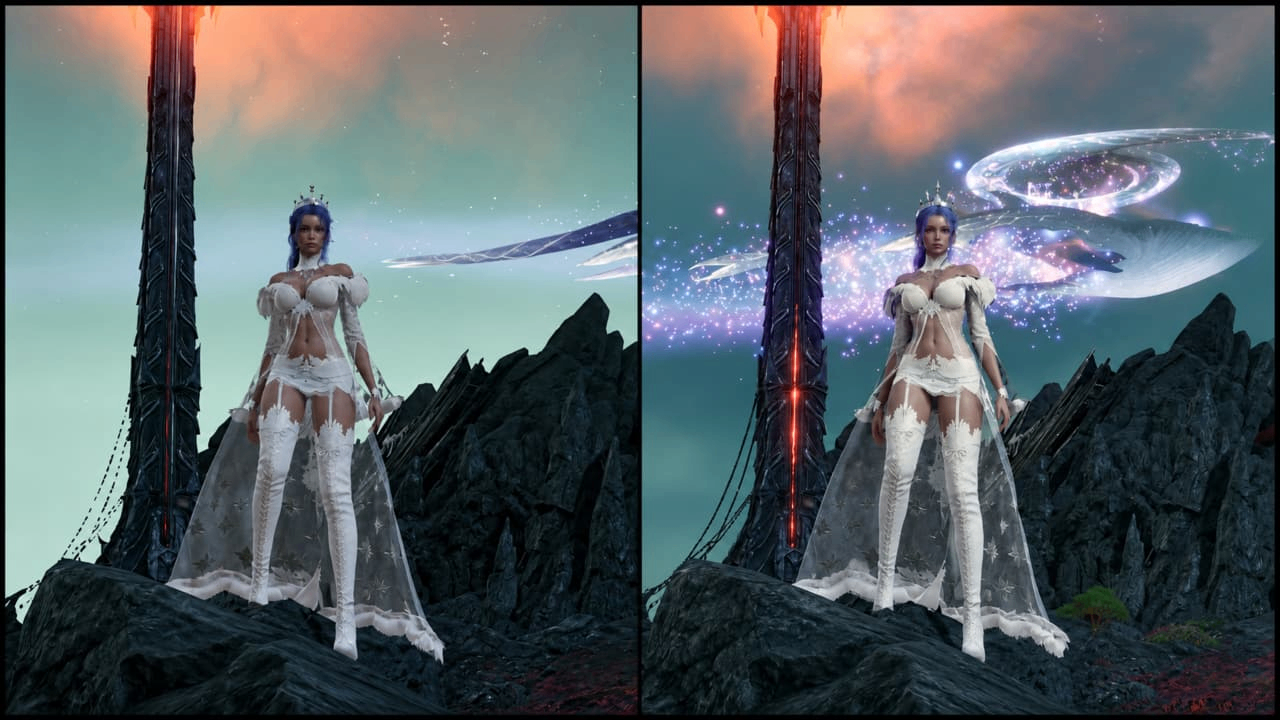
Find Post-Processing Quality in AION2's graphics menu. Start with High; test Low if color fringing or camera effects interfere with visibility. Compare building edges, character outlines, and bright areas.
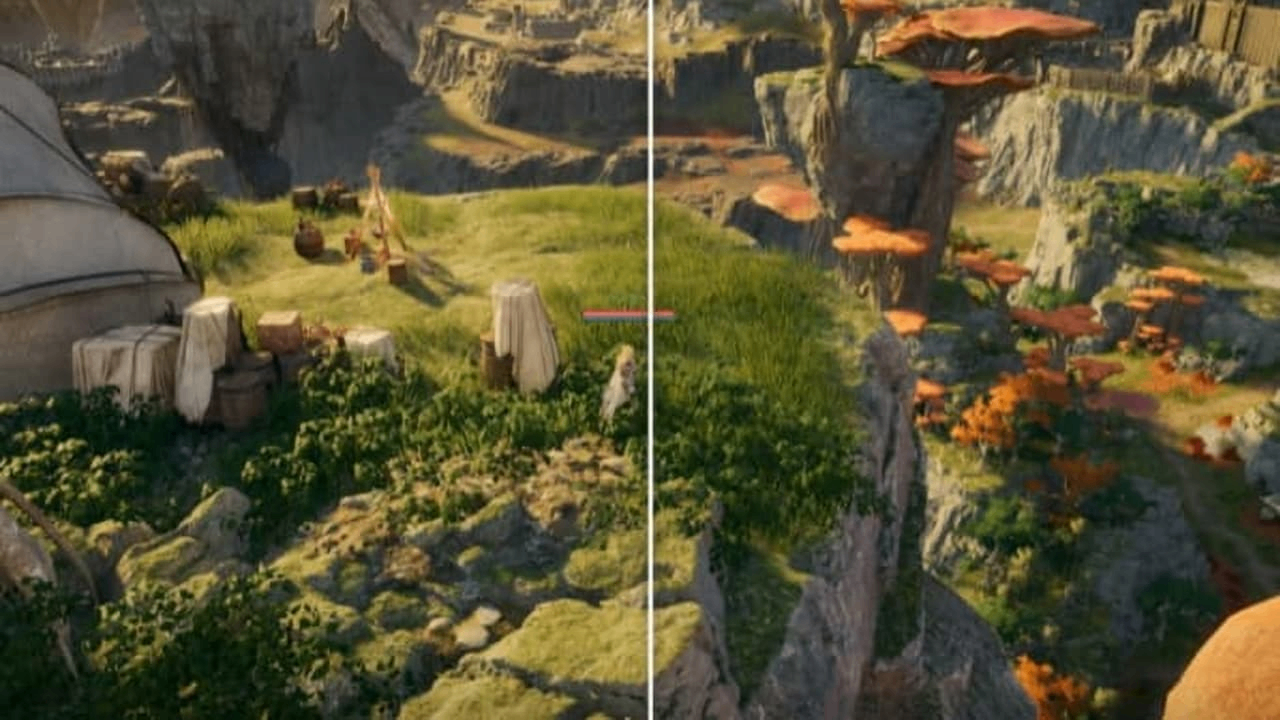
Low can reduce lens distortion and chromatic aberration near the screen edges, while bloom differences between Normal and Very High are relatively subtle.
Low changes the visual style by reducing camera effects; it does not directly increase texture detail.
Observed Change | What It Suggests | Next Step |
Less edge color fringing | Post-processing affected that appearance | Keep Low; check central and distant detail |
Cleaner edges, blurry rooftops or clothing | Another issue remains | Compare Native and Quality |
Clear when stationary, trails during movement | Motion needs separate attention | Keep post-processing fixed; check ghosting |
No clear clarity or FPS change | Lowering this setting did not help | Restore it; check scaling or effects |
Lowering post-processing does not guarantee an FPS improvement, so higher settings remain reasonable.
For players farming Aion 2 Kinah in the open world, Low is worth keeping only if it improves visual clarity. It may reduce distracting edge effects, but it will not necessarily remove hair or foliage ghosting.
When to Stop Lowering Resolution Scale
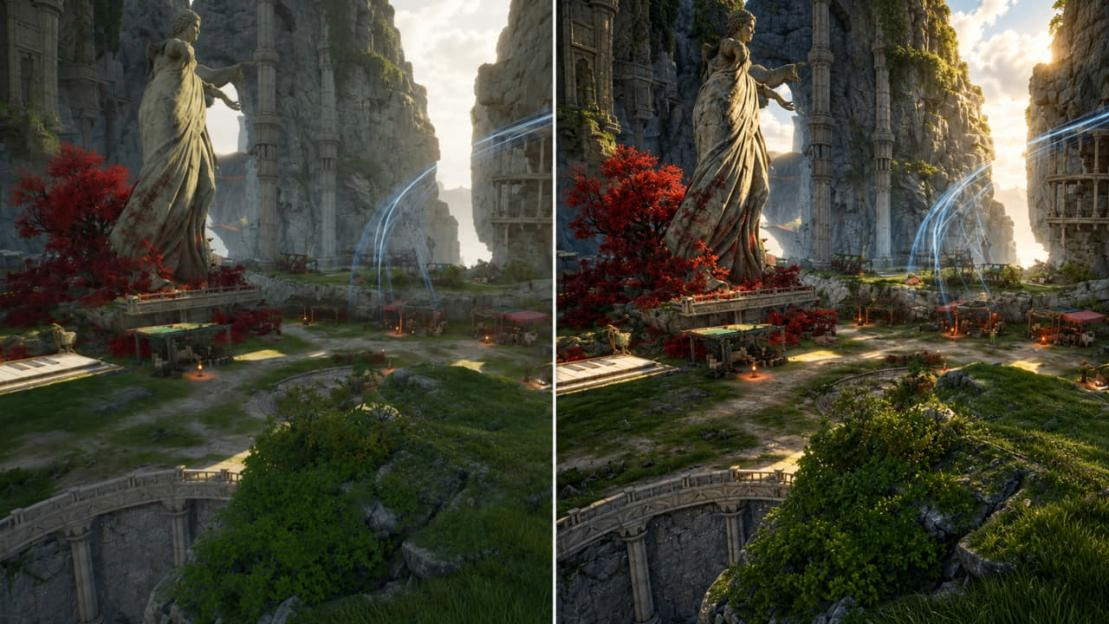
Match AION 2's output resolution to your monitor's native resolution. Use DLSS on RTX cards, or check available FSR options on other hardware. Start Resolution Scale at Native as a clarity baseline, then try Quality if performance falls short.
Native does not disable all image processing. Upscaler selects the reconstruction method; Resolution Scale selects the scaling mode. Selecting DLSS alone does not establish that rendering uses a lower resolution.
These average FPS figures compare three DLSS scaling modes. The test resolution, GPU model, and frame-generation state remain unconfirmed, so the figures describe this comparison and do not predict performance on other systems.
DLSS Scaling Mode | Average FPS in This Test | Selection Basis |
Native | 68.5 | Keep if sufficiently smooth |
Quality | 88.5 | First step when Native runs poorly |
Balanced | 89.2 | Use if smoothness gains justify lost detail |
Average FPS barely increased beyond Quality here. This does not establish a universal 0.7 FPS difference between modes.
During longer Aion 2 Kinah farming sessions, keeping Quality may be more useful than sacrificing distant detail for minimal FPS gains. If performance still falls short, investigate crowd density and effects instead.
Two Starting Configurations
AION2's priorities change with the scene. These starting recommendations combine individual observations; neither configuration has been tested as a complete preset. Leave unlisted settings unchanged.
Setting | Solo Exploration: Detail First | Crowded Combat: Visibility First |
Resolution Scale | Native; Quality if needed | Quality; Balanced if worthwhile |
Post-Processing Quality | High; test Low for color fringing | High; test Low if camera effects interfere |
Effect Quality | High | Normal; Low if needed |
Player Particle Effect Display | Everyone | Self and Party |
Texture / Model Quality | High; lower if VRAM is tight | Initially keep High |
Shadow Quality | High | Low |
Frame Generator | Off while checking ghosting | Off to establish responsiveness |
Exploration retains environmental detail; combat reduces unnecessary particles and shadows. Lower Effect Quality can remove noticeable skill and environmental particles, including some mount effects.
Check whether important combat effects remain visible before keeping a lower setting. Keep textures and models initially to preserve character and terrain detail.
What to Change in Crowds
If AION 2 runs smoothly outdoors but struggles in multiplayer PvP, adjust according to the trigger. Player Particle Effect Display controls whose particles appear; Effect Quality changes effect quality. Neither substitutes for reducing displayed units.
Trigger | Setting to Check | Adjustment | Trade-Off |
Stuttering when many players cast | Player Particle Effect Display | Everyone to Self and Party | Fewer outside-party particles; check combat cues |
Remaining effects obscure targets | Effect Quality | High to Normal, then Low if needed | Reduced particle presentation |
Crowds cause stuttering before casting | Identical Player Appearance | Test enabling separately | Less outfit variety |
Large battles still struggle | Mass Combat Quality | Lower; check visible units | Check for missing enemies or monsters |
Slow texture loading with tight VRAM | Texture Quality | Lower one step | Less clothing and terrain detail |
Self Only also hides teammates' particles, so prefer Self and Party. Mass Combat Quality affects how many units can appear in large battles. Check for missing enemy players and monsters after lowering it to protect target awareness. Standardized appearances apply only where supported by the client.
For example, if Quality keeps distant details clear but spellcasting causes stutters while farming Aion 2 Kinah in a crowded open-world area, restrict outside-party particles first.
If the problem starts as characters gather, check standardized appearances and mass-combat settings. Stop sacrificing clarity when lower scaling barely changes FPS. These clues prioritize testing; they do not diagnose CPU or VRAM bottlenecks.
Next, compare Volumetric Light Scattering separately from Volumetric Fog. Disabling light scattering may provide a larger FPS improvement than disabling volumetric fog.
They are separate options; neither needs disabling automatically. Results do not predict other systems. Check the tooltip if scattering is unavailable.
Ghosting and Configuration Problems
If AION2 looks clear while stationary but shows trails during movement, keep scaling and post-processing fixed, disable Frame Generator, then pan and strafe again. If trails remain, compare Native and Quality.
Reconstruction participates in anti-aliasing; repeatedly lowering Anti-Aliasing is unnecessary if it makes no visible difference.
Generated frames do not proportionally improve input response. Establish a baseline with generation off, then reconsider it. If smoother movement brings unacceptable ghosting, leave it off and optimize effects.
Engine.ini editing is optional. Unknown configurations may include draw-distance or VRAM changes with unconfirmed compatibility and authorization.
If you previously edited files, exit the game and restore your own backup. Avoid read-only attributes that block saving; ask support about recovery if no backup exists.