






Summary
Still using default settings in College Football 27? You're handing opponents free wins—the meta has shifted after months of updates. Just like you'd buy NCAA 27 Coins to boost your ultimate team, you need to update your settings to stay competitive. This guide breaks down the best CFB 27 settings—passing, catching, defense, coaching adjustments—so you can stop losing to random nonsense.
1. Passing Mechanics: Revamped Is the Answer for Most Players
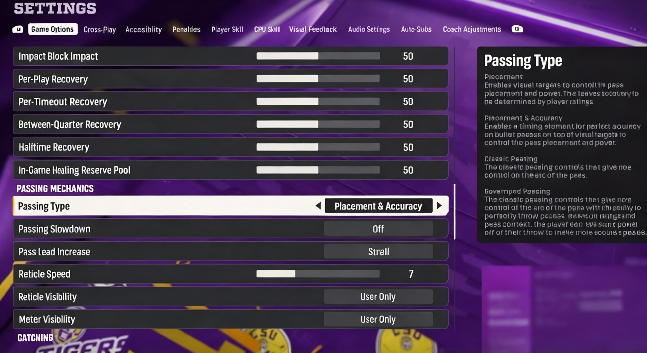
Head to Settings > Game Options > Passing and the first decision you'll face is your passing type.
Recommended: Revamped Passing
Here's why. Revamped gives you better ball trajectories and excellent pass leading without requiring extra button inputs. You can lead receivers with just the left stick and drop balls into tight windows more consistently. It's the best overall setting for the vast majority of players.
If you use Revamped, pair it with:
· Pass Lead Increase: Small — gives you enough lead without becoming erratic
· Reticle Speed: 15 — snappier aiming than default
· When should you use Placement & Accuracy instead?
Only if you're committed to mastering Free Form Passing with the left trigger (L2/LT). That means putting in serious practice time and accepting a steep learning curve. Top 1% players use it because they've grinded hundreds of hours. For everyone else, Revamped is the smarter play.
2. Catching: Keep Timing Based On, Set It to 5 Yards
Timing Based Catching has been patched multiple times this year. It was overpowered early on, then got tightened up. Now it's in a good spot—rewarding if you master it, not punishing if you don't.
Recommendation: Leave it ON, set distance to 5 yards.
Why 5 and not 10? Because you don't want timing mechanics interfering with quick routes—flats, screens, running back checkdowns. Those need to be fired off immediately. Save the timing window for routes 5+ yards downfield: digs, posts, streaks.
If you want nothing to do with it, turn it off entirely. Catches revert to the traditional animation-based dice roll from previous years.
3. Defensive Assists: Two Must-Haves for Non-Elite Players
Gameplay Helpers is the most overlooked section every year, and it's exactly what determines whether your defense holds up or gets shredded.
Defensive Ball Hawk: Always ON.
This gives you the best interception animations, including high-jumping grabs. It also helps your AI defenders pursue the ball better when you're not usering them.
Defensive Heat Seeker Assist: ON, Window at 200%.
Open-field tackling is one of the hardest things in this game. Heat Seeker steers your defender toward the ball carrier, which drastically reduces whiffs. If you're not a top 2% player with elite stick skills and reaction time, keep this on.
The exception: If you ARE a top 2% player, consider turning it off. The assist briefly takes control away from you, and against elite opponents who can manipulate open-field angles, that split-second loss of control matters.
Switch Stick Delay: Always Slight.
Never set this to None. If you're making a defensive adjustment when the ball snaps, you'll accidentally switch to the wrong player. Slight gives you a tiny buffer window to prevent that.
4. Controlled Play Art: The Slept-On Visual Cue
This one's buried in Gameplay Helpers and most people never touch it. When enabled, it shows your controlled player's zone responsibility and run fit.
Turn it ON regardless of skill level.
The value here is cognitive offloading. When you're usering a linebacker or safety, you don't need to memorize your assignment every play—the game shows you exactly where to be. It reduces hesitation and helps you avoid vacating your zone. Especially useful for dynasty players who cycle through different defensive schemes.
5. Coin Toss: Two Choices That Win You Extra Games
First Choice: Kick.
If you win the toss, choose to kick. This gives you the ball to start the second half. The value is information: at halftime you know the score and can decide whether to push tempo or chew clock. It puts you in control of the game's flow.
Second Choice: Against Wind.
If you lose the toss, you still get to pick direction. Choosing against the wind means you have the wind at your back in the fourth quarter. A 50-yard field goal becomes a 55-yarder. That can literally be the difference between winning and losing.
6. Coaching Adjustments: The Ones That Actually Matter
Go to Coaching Adjustments and work through these in priority order.
Auto Base Protection: Set to Base
Many plays have built-in half slides or full slides. If you hot-route your running back out on a play where the line is half-sliding, the back end is left unprotected and an edge rusher comes in free. Setting this to Base removes all built-in slides and gives you standard drop-back protection every play.
Untarget User Defender: ON
Online opponents love to mug the gap with their user defender, standing over the offensive line to confuse blocking assignments. Untarget User Defender tells your line to ignore that user. EA has fixed the old issue where this also ignored users on run plays, so it's safe to leave on now.
Cornerback Matchups: Always Balance
Do NOT set this to Overall, Speed, or Height. This setting glitches out depending on defensive/offensive formations and play flips. You'll end up with a corner lined up on the opposite side of the field, giving up a free touchdown. Balance is the only safe option.
Option Read Key: Conservative
Against Read Option, your defense attacks the QB. Most players keep the ball with the QB on read options, so Conservative shuts that down in the backfield. If they're smart enough to hand it off, stopping the running back in the box is much easier than chasing a wide-open QB.
RPO Read/Pass Key: Conservative
When opponents run RPOs, they want the bubble screen or flat pass. Conservative prioritizes defending those quick throws. It won't stop it every time, but it's far more reliable than any other setting.
Safety Depth: 9
This is the verified sweet spot. Depth of 9 keeps you from getting beaten over the top while still keeping safeties close enough to help against the run. Pair it with Safety Width: Pinch to tighten their alignment and better defend seam routes.
7. Visual Feedback: Two Small Changes, Big Difference
Force Off Motion Blur: YES.
Motion blur is especially distracting in rain and snow games. Turning it off gives you a cleaner picture, and many players swear the game performs better without it. No downside.
Enlarge On-Field Graphics: Situational.
If you struggle to see receiver icons or the timing-based catching meter, turn this on. It makes all on-field graphics bigger, which genuinely helps some players' passing and catching timing. If you don't need it, keep it off for a cleaner screen.
8. Camera Toggle: Turn It Off
Camera Toggle: OFF.
You've been there—accidentally hit the D-pad, the camera changes to some weird zoomed-out angle, the ball snaps, and you're scrambling to figure out what you're looking at. Turn this off entirely. Set your preferred camera (Standard, Wide, whatever you like) and disable the toggle so you never accidentally change it mid-game.
Final Word
These settings won't turn you into a pro overnight, but they eliminate a massive amount of unforced errors—the kind that come from using the wrong passing mode, leaving defensive assists off, or getting burned by a cornerback matchup glitch. And if you're looking to strengthen your team alongside fixing your settings, NCAA 27 Coins for sale are available at MMOEXP, a trusted marketplace for players who want a competitive edge. In College Football 27, not giving away free points is already half the battle. Fix your settings, and you'll start winning the games you've been losing for no good reason.