






Summary
College Football 27 has changed considerably after several updates, so settings that worked well earlier in the year may no longer be the best choices. Whether you are playing online, Dynasty, or against friends, the right settings can make passing, catching, tackling, coverage, and blocking feel much more consistent.
Here are the updated College Football 27 settings, including passing options, gameplay helpers, visual settings, and important coaching adjustments. To build a roster that fits your scheme, buy CUT 27 Coins and unlock premium recruiting tools to develop the right talent.
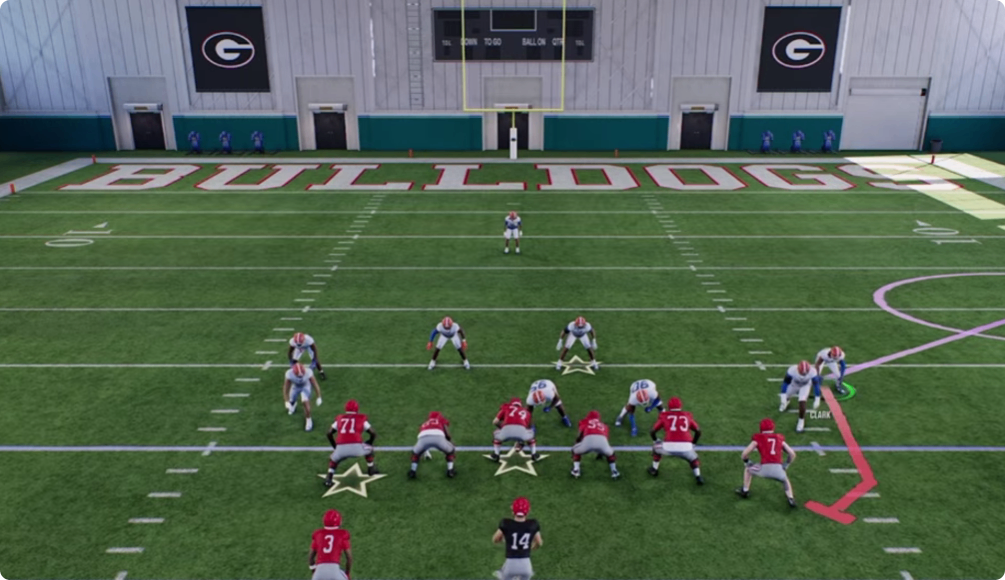
Best Passing Settings
Passing is one of the most important settings categories in College Football 27, and the two main options are Revamped and Placement & Accuracy.
Revamped Passing
For most players, Revamped is the recommended choice. It provides better ball trajectories and allows you to lead passes effectively with the left stick without relying heavily on additional controls.
Set Pass Lead Increase to Small and Reticle Speed to around 15. This combination provides useful pass leading while remaining relatively easy to control.
Placement & Accuracy can still be a strong option for highly skilled players who have mastered free-form passing. If you are comfortable using the left trigger or L2 for precise passing, you can keep Reticle Speed around its default value of 7.
For most players, however, Revamped with a 15 Reticle Speed is the easier setup.
Best Catching Settings
Timing-Based Catching has changed throughout the year. It was particularly powerful earlier in the game's life cycle, but later updates tightened it up.
It is still worth leaving on if you are comfortable with the timing mechanic. A setting of 5 yards is a good general choice for both offense and defense.
The five-yard threshold means you do not have to time simple short throws such as screens or flat routes. Timing becomes relevant for deeper routes, including digs, streaks, and posts.
If you do not want to use timing-based catching at all, you can turn it off and return to the standard catch outcome system.
Best Gameplay Helper Settings
Gameplay Helpers contain several settings that can have a noticeable impact on defensive control.
Defensive Ball Hawk
Set Defensive Ball Hawk to On.
This helps provide better interception animations and can also help AI-controlled defenders make plays on the ball when you are not controlling them directly.
Defensive Heat Seeker Assist
For most players, set Defensive Heat Seeker Assist to On and the window to 200%.
The assist helps guide your defender toward the ball carrier during open-field tackles. Since user-controlled open-field tackling can be difficult, the extra assistance can make defensive control more forgiving.
Highly skilled players who are already excellent with the stick may prefer turning it off because the assist can slightly influence their movement and tackling angle.
Switch Stick Delay
Set Switch Stick Delay to Slight.
This prevents accidental switch-stick inputs from immediately changing your controlled defender while still allowing you to use the mechanic when needed.
Defensive Switch Assist
For most players, keep Defensive Switch Assist On. When you switch onto a defender, the assist helps guide you toward the direction that defender was already moving.
This can prevent you from immediately running yourself out of position after switching.
Players who are extremely comfortable with manual defensive movement may prefer it off because even a small amount of automated movement can interfere with precise user control.
Controlled Play Art
Set Controlled Play Art to On.
This is useful because it displays your defensive responsibility while you control a player. It can show your zone assignment and provide a visual indication of your run-fit responsibility.
Instead of constantly guessing where your defender should be, you can use these visual cues to maintain your assignment.
Accessibility and Visual Settings
Some settings do not directly change gameplay mechanics but can make the game easier to control.
Enlarge On-Field Graphics
Enlarge On-Field Graphics is largely a preference.
Turning it on makes receiver icons and the timing-based catching meter larger, which can help players who have difficulty seeing these indicators.
If you prefer a cleaner presentation, leave it off.
Force Off Motion Blur
Set Force Off Motion Blur to Yes if you prefer a clearer visual presentation.
Motion blur can be distracting for some players, and disabling it is an easy adjustment if you find the effect unpleasant.
Camera Toggle
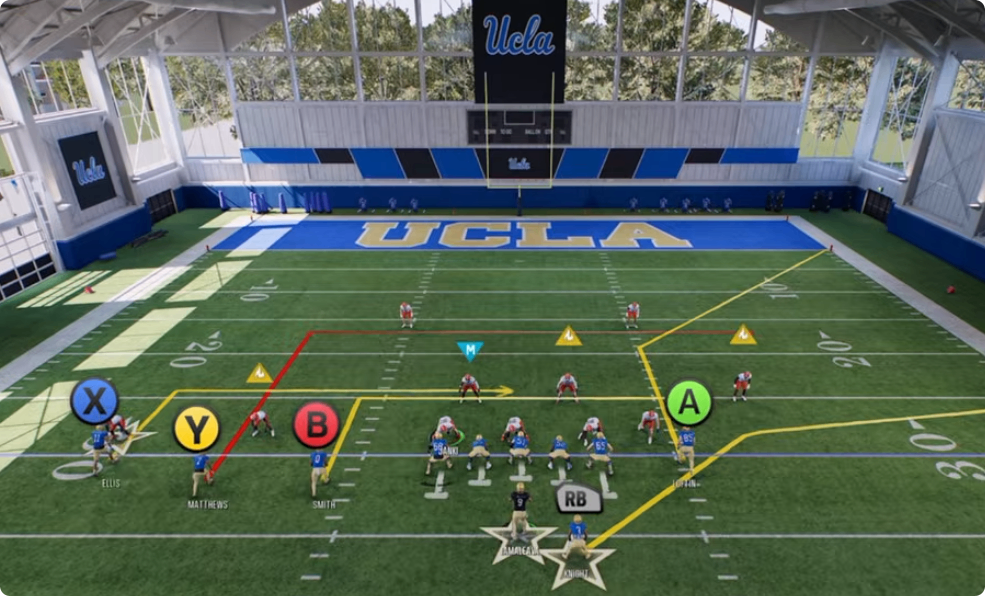
Turn Camera Toggle Off if you normally stick to one camera angle.
This prevents accidental D-pad inputs from changing your camera during a play. First select your preferred offensive and defensive camera, then disable camera toggling to avoid unexpected changes.
Best Coaching Adjustments
Coaching Adjustments contain some of the most important settings in the game.
Blocking and Auto Base Protection
For blocking, Balance is the safest choice. Aggressive blocking was previously more useful, but later changes reduced its effectiveness.
For Auto Base Protection, use Base for the standard setup. This removes automatic half-slide and full-slide behavior built into certain plays, giving you more predictable protection.
Empty can be useful against opponents who frequently use defensive line stunts, but Base is the recommended general setting.
Untarget User Defender
Set Untarget User Defender to On.
This prevents your offensive line from automatically treating a user-controlled defender as a primary blocking target. It can help against opponents who move defenders around the line of scrimmage to manipulate your blocking assignments.
This setting can be changed during the game if an opponent starts manually exploiting it with aggressive user blitzes.
Wide Receiver Scramble Support
Set Wide Receiver Scramble Support to Aggressive.
When a play breaks down and the quarterback starts scrambling, your receivers will more aggressively adjust their routes and look for open space.
Zone Window Awareness
Leave Zone Window Awareness Off.
Although it can help receivers recognize open areas in coverage, unpredictable route adjustments can make passing less consistent. Keeping it off gives you more predictable receiver movement.
Auto Flip Defensive Play Call
Set Auto Flip Defensive Play Call to On.
This helps align defensive assignments with the offensive formation and reduces unwanted mismatches between defenders and receivers.
Cornerback Matchups
Keep Cornerback Matchups on Balance.
Avoid automatically matching corners based solely on overall rating, speed, or height. Those options can occasionally create unwanted alignment issues depending on formations and play adjustments.
Balance provides a more predictable defensive alignment.
Option, RPO and Secondary Settings
The option and RPO adjustments are particularly important for defending mobile quarterbacks and quick throws.
Option Read Key
Set Option Read Key to Conservative.
This makes the defense prioritize stopping the quarterback on a read option. If the offense repeatedly keeps the ball with the quarterback, this setting can reduce the effectiveness of that approach.
Pitch Key
If you are confident controlling the running back yourself, Conservative can be effective because you can focus on the pitch player manually.
If you are less comfortable with user defense, Aggressive can provide more help from the defense.
RPO Read and Pass Key
Set both to Conservative.
This helps the defense deal with the quick bubble screens and flat throws commonly used from RPO plays.
Defensive Depth and Plaster Settings
For Cornerback Depth, use Default when primarily playing zone coverage. If you rely heavily on man coverage, try a depth of around 3, with 5 also worth testing.
For Safety Depth, set it to 9. This provides a useful compromise between protecting against deep passes and keeping safeties in position to support the run.
Set Safety Width to Pinch. The tighter alignment can help against both running plays and quick seam routes.
Finally, for Plaster Settings, use:
Plaster: Conservative
Plaster Trigger: Time
Plaster Time: Aggressive
This setup allows defenders to attach to receivers relatively quickly while avoiding an overly aggressive plaster behavior. It can be particularly useful when quarterbacks scramble or extend plays outside the pocket.
Final College Football 27 Settings
There is no single setup that every player must use. Your ideal settings depend on your passing style, defensive skill, and whether you mainly play zone or man coverage.
For most players, though, the key choices are Revamped passing with 15 Reticle Speed, five-yard timing-based catching, Ball Hawk On, Heat Seeker Assist On at 200%, Switch Stick Delay on Slight, Controlled Play Art On, Base protection, Untarget User Defender On, and balanced cornerback matchups.
Highly skilled players can turn off some of the defensive assists to gain more direct control, while players who rely heavily on man coverage can adjust their cornerback depth accordingly.
The important thing is to use these settings as a starting point and then make small changes based on your own playstyle and the opponents you regularly face. To build a roster that executes your scheme, CUT 27 Coins can unlock premium recruiting and training tools that help you develop the right players for your system.