






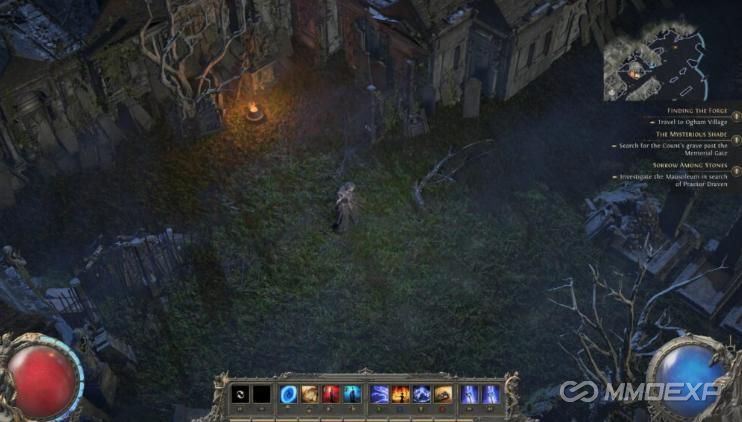
If you're diving into Path of Exile 2 on consoles like the PlayStation 5 (PS5) or Xbox Series X, optimizing your graphics settings can greatly enhance your gaming experience. With the game's early access version offering a variety of PC-like options for graphics customization, you can tweak settings to prioritize performance, visual fidelity, or a balance between the two. This guide explores the best Path of Exile 2 console graphics settings, including how to utilize features like Dynamic Resolution, Upscale Modes, and more to suit your playstyle. Here's how to get the most out of your console's graphics settings.
Understanding Path of Exile 2 Console Graphics Options
Unlike traditional console games that simply offer "Performance" or "Quality" modes, Path of Exile 2 provides a broader range of PC-like graphical adjustments. These include:
Dynamic Resolution: Adjusts resolution in real time to maintain performance during intense moments.
Upscale Modes: Choose from three options to enhance visuals while balancing performance.
Max Resolution: Cap the resolution to reduce strain on your console's hardware.
Sharpness and Scene Brightness: Fine-tune clarity and lighting to match your preferences.
UI Brightness: Customize how bright or dim in-game menus and UI elements appear.
Lighting and Bloom: Control how light effects and ambient bloom enhance the atmosphere.
With so many settings available, selecting the best configuration can feel overwhelming. Below is a breakdown of optimal settings for PS5 and Xbox Series X players.
Best Graphics Settings for PS5 and Xbox Series X
Dynamic Resolution
Enable Dynamic Resolution to ensure stable performance during combat-heavy scenarios or crowded areas. This setting adjusts resolution on the fly, reducing it when the system is under strain and restoring higher resolution during calmer moments.
Recommendation: Set to "ON" for smoother performance during intense gameplay.
Upscale Mode
Upscale Mode offers three options to enhance visuals:
Quality: Prioritizes visual fidelity.
Performance: Focuses on smoother gameplay.
Balanced: A mix of both.
Recommendation:
Choose Performance Mode if you prefer a high frame rate.
Opt for Quality Mode if you enjoy stunning visuals and don't mind slightly reduced responsiveness.
Select Balanced Mode for an even experience, ideal for most players.
Max Resolution
For the sharpest visuals, set Max Resolution to the highest value supported by your console and TV, such as 4K. However, if you notice frame drops, consider lowering it to 1080p for smoother gameplay.
Recommendation:
Use 4K for visual fidelity, but drop to 1080p if you prioritize frame rate stability.